


Organize processes in folders
Create folders on the home page, move processes into them or under another process, and find your way around with the breadcrumb and the folder address.
| Folders and the Tree view are available from Bonita Process Designer 1.1. |
|
Words used on this page
|
What a folder is
A folder is a container on the home page. It holds processes and other folders, which lets you organize a long list of processes by team, domain or any structure that suits you.
-
A folder is not a process: it has no diagram, and you cannot open it in the editor, export it or comment on it.
-
A folder belongs to a group, like a process. You only see the folders of the groups you are a member of; an Admin sees every folder. Everything filed in a folder belongs to the folder’s group. The group of a folder, like that of a process, is chosen at creation and cannot be changed afterwards.
-
A folder with no group is visible to, and managed by, Admins only. It lets an Admin organize processes that have no group.
Folders and labels are complementary: a process has one filing place, but can carry several labels. See Labels or folders?.
Who can do what
| Action | Admin | Creator | Reader |
|---|---|---|---|
Open folders, browse the Tree view, search |
Every folder |
Folders of their groups |
Folders of their groups |
Create, rename, move and delete folders |
Every folder |
Folders of their groups |
No |
Create a folder with no group |
Yes |
No |
No |
Move processes (into a folder, under another process, back to Home) |
Every process |
Processes of their groups |
No |
Readers do not see the Create New Diagram and New folder buttons. A Creator who belongs to no group cannot create a folder: the New folder button is disabled, with the note "Join a group to create diagrams — ask an administrator to add you to one." For the full rights matrix, see Roles and permissions.
Create a folder
-
On the home page, go to the level where you want the folder: stay on Home, or open the folder that should contain the new one.
-
Select New folder.
-
Enter a Name (required, at most 255 characters).
-
At Home only, choose the Group the folder belongs to. An Admin can also choose No group (visible to administrators only). Inside a folder there is no group to choose: the new folder takes the group of the folder it is created in, and the dialog is titled New folder in "Finance".
-
Select Create.
The folder appears on the current level, before the processes, and a confirmation appears, for example: Folder "Procurement" created.
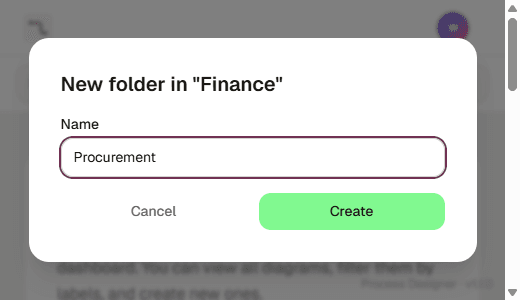
You can also create a folder inside an existing one without opening it first: choose New folder in "Name" in the menu of its tile, use the New folder in "Name" icon button of its row in the Tree view, press N on its row, or choose New folder here in the row’s context menu.
Open a folder and find your way back
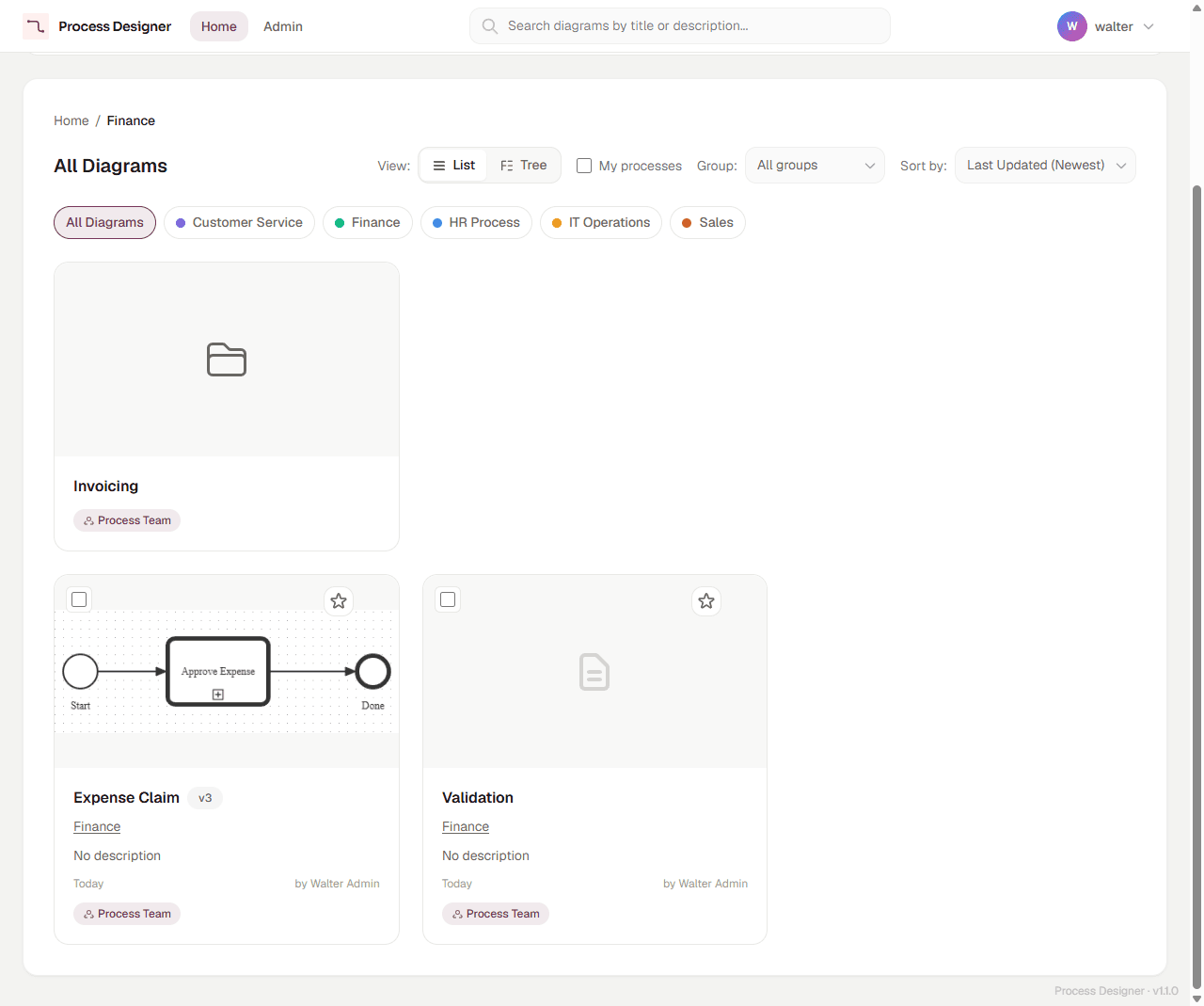
Select a folder tile (List view) or a folder name (Tree view) to open it. The home page shows one level at a time: the folders of the level first, then the processes filed directly in it.
-
The breadcrumb above the level shows where you are, starting from Home, for example Home / Finance / Invoicing. Select a segment to go back up to that level. The browser’s Back and Forward buttons move between the levels you visited.
-
The address of the page carries the folder path by name, for example
/home/f/Finance/Invoicing. You can bookmark it, send it to a colleague, or open a folder in a new browser tab (middle-click or Ctrl+click on the tile). A colleague who opens the link sees the folder only if they are a member of its group. -
A process filed under another process is not shown as a card on any level. It appears under its parent in the Tree view, and in search results, where its filing path is shown.
When a link no longer matches a folder
Because the address is made of folder names, it stops matching when a folder on the path is renamed, moved or deleted, or when you do not have access to it. The home page then opens at Home with the message "No folder “Invoicing” here — showing Home.", naming the first folder of the path that could not be found. For a folder that was renamed or moved, this happens when the old address is opened or the browser page is reloaded.
The same message appears, and the page returns to Home, when the folder you are viewing is deleted, or you lose access to it, as soon as the page reloads that level.
Folder names are unique within a level
Two folders at the same level cannot have the same name. The comparison ignores letter case and the spaces around the name: Archive, archive and ARCHIVE are the same name, and so is Archive typed with a trailing space. When a name is already taken, creating, renaming or moving the folder is refused with "A folder with this name already exists there."
-
Inside a folder, the rule applies to its sub-folders.
-
At Home, the rule applies within each group: two groups can each have a top-level folder named
Finance. -
The same name can be used at different levels, for example
Finance / ArchiveandHR / Archive.
Process titles, on the other hand, do not have to be unique. See Manage diagrams.
|
An Admin, or a member of several groups, can therefore see two top-level folders with the same name; their tiles show the group each one belongs to. An address such as |
Rename a folder
Creators (in their groups) and Admins can rename a folder:
-
in the List view, from the tile’s menu: Rename folder "Name";
-
in the Tree view, with the Rename folder "Name" icon button of the folder row, the F2 key, or Rename in the row’s context menu.
Enter the new Name and select Rename. The same uniqueness rule applies. Renaming a folder changes the address of the folder and of everything below it, so older bookmarks open Home with the message described above.
Move a folder
A folder is moved with everything it contains.
-
Choose Move to… in the tile’s menu (List view), or use the Move to… icon button or the context menu of the folder row (Tree view).
-
In the Move folder dialog, open the Parent process list and choose Home, or a folder under Folders. Only folders of the same group are offered, never the folder itself or one of its sub-folders.
-
Select Move.
In the Tree view you can also drag a folder row onto another folder row, or, at Home, onto the Move to Home band. A folder cannot be filed under a process: process rows do not accept a dragged folder.
Move processes
Moving a process changes its filing place: Home, a folder, or under another process. The processes filed under it move with it. Creators can move the processes of their groups, Admins any process. Readers cannot move anything: if they try, the move is refused with "You do not have permission to file processes."
Every method below leads to the same destinations and the same rules.
From a card, with Move to…
-
In the List view, open the card’s menu (the three dots) and select Move to….
-
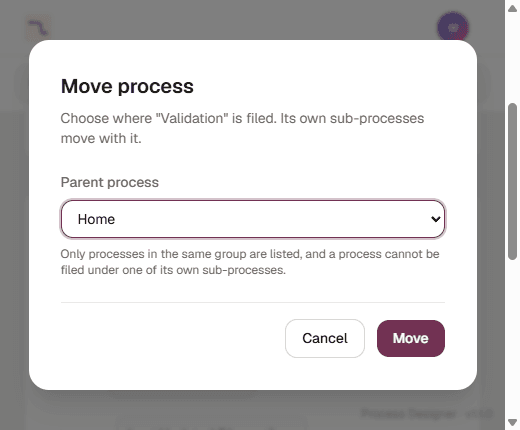
In the Move process dialog, open the Parent process list and choose the destination:
-
Home, to take the process out of any folder or parent process;
-
a folder, listed under Folders;
-
a process, to file it under that process.
The list opens on Home, not on the process’s current place. If you select Move without choosing a destination, the process moves to Home, and a single move cannot be undone.
-
-
Select Move. A confirmation appears, for example: "Validation" has been moved.
The list only offers valid destinations: folders and processes of the same group, and never the process itself or one of its own sub-processes.
From the Tree view
In the Tree view, the same dialog opens from the Move to… icon button of a row, the M key, or the row’s context menu; see Browse the process tree.
By drag and drop
In the Tree view, drag a process row and drop it:
-
onto a folder row, to file the process in that folder;
-
onto a process row, to file it under that process;
-
onto the Move to Home band, which appears below the tree while you drag, to move it to Home. The band only exists at the Home level: inside a folder, use Move to… to take a process back to Home.
Only rows that accept the drop are highlighted, with the tooltip File under "Name". A row that does not accept the drop shows a no-drop cursor, and releasing there does nothing. If the row you drag is part of the selection, the whole selection moves; if it is not, it moves alone and the selection is cleared. Drag and drop is available in the Tree view only.
Several processes at once
First select the processes:
-
in the List view, select the checkbox in the top-left corner of each card, or Ctrl+click the card (Cmd+click on macOS);
-
in the Tree view, select the row checkboxes, Ctrl+click a row, or Shift+click a row to extend the selection to it. From the keyboard, Ctrl+Space selects or deselects the focused row and Shift+Down Arrow / Shift+Up Arrow extends the selection.
A bar above the level shows the count, for example "2 processes selected", with Move selection… and Clear selection. The selection is kept when you switch between the List and Tree views, and cleared when you open another folder. Folders cannot be selected: move them one at a time.
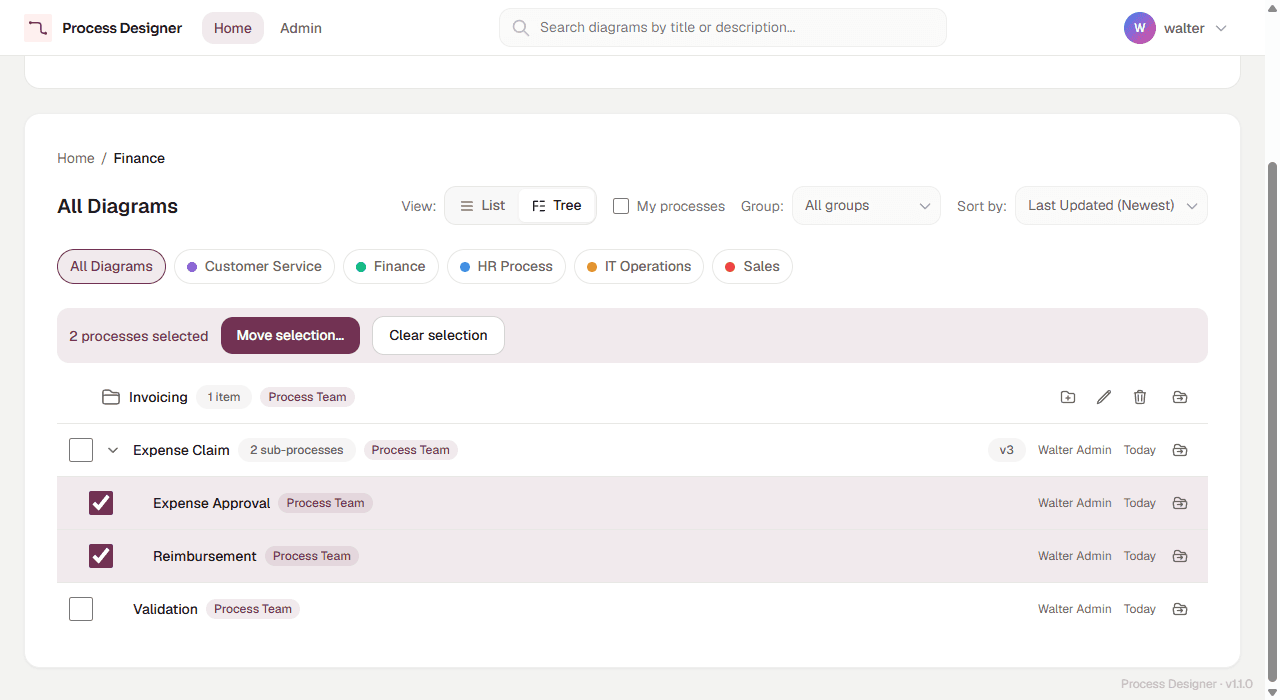
Then select Move selection…, or press M in the Tree view. The Move processes dialog works like Move process, with these differences:
-
A selected process that is filed under another selected process is left out, because it moves with its parent anyway. The dialog says how many were left out.
-
Only destinations valid for every selected process are offered. A selection that spans several groups can only be moved to Home.
-
The button names the count, for example Move 2 processes. A single move can include up to 500 processes.
Results and Undo
After Move selection…, the dialog shows the result:
-
"2 processes were moved." when everything moved;
-
otherwise a partial result such as "1 moved, 1 could not be:", followed by each process that did not move and the reason, for example "This process no longer exists." Each process is moved or refused on its own, so a partial result is normal when someone else changed the tree in the meantime.
The dialog then offers Undo, which returns the moved processes to where they were: "2 processes were returned to where they were." Undo is only available there, until you close the dialog.
A drag and drop that moves everything only shows a confirmation, with no Undo. If some of the dropped processes could not be moved, the same result dialog opens, with Undo. A single Move to… has no Undo either: move the process back if needed. To be able to undo, prefer Move selection….
File a process under another process
To file a process under another process, choose that process as the destination: in the Parent process list of the move dialogs, or by dropping the row onto it in the Tree view.
Once filed under a parent, the process:
-
no longer appears as a card in the List view. It appears under its parent in the Tree view, where the parent shows a count such as "2 sub-processes";
-
shows its parent in its filing path, for example
Finance / Expense Claim, in search results; -
moves with its parent when the parent is moved.
This is useful to keep the variants or the steps of a larger process together. It has no effect on the diagrams themselves: to make a process call another one when it runs, add a Call Activity in the editor: see Call other processes.
Restrictions
A move is refused, with the message shown here, when:
-
the destination is in another group — "A process can only be filed under a process in the same group." This also applies to Admins, and to moving a folder into a folder of another group;
-
the destination is the process itself or one of its own sub-processes — "A process cannot be filed under itself or under one of its own sub-processes." The same rule prevents moving a folder into itself or into one of its sub-folders;
-
a folder would be filed under a process: the move dialogs never offer a process as the destination of a folder, and process rows do not accept a dragged folder;
-
the result would be too deep — "A process cannot be filed more than 64 levels deep.";
-
a folder with the same name already exists at the destination — "A folder with this name already exists there."
A process that has no group can only be filed in a folder that has no group, or under another process that has no group. Only Admins see folders that have no group.
Delete a folder
Creators (in their groups) and Admins can delete a folder. Deleting a folder never deletes a process.
-
Choose Delete folder "Name" in the tile’s menu (List view), or use the Delete folder "Name" icon button of the folder row, the Delete key, or Delete in the row’s context menu (Tree view).
-
The Delete folder dialog explains "Its processes and sub-folders are not deleted: they move to Home." and lists what will move, for example "1 item will move to Home:". It names up to five items, and says how many items you do not have access to.
-
Select Delete folder.
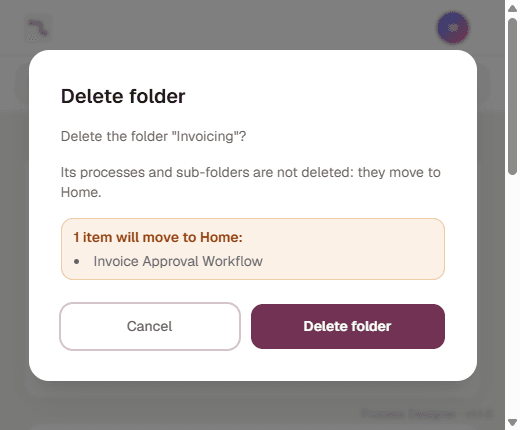
What happens to the contents:
-
The direct contents of the folder, its processes and its sub-folders, move to Home, whatever the depth of the deleted folder. They do not move to the folder above it.
-
Sub-folders keep their own contents, and processes keep the processes filed under them.
-
If a sub-folder that moves to Home has the same name as a top-level folder of its group, it is renamed
Name (2)(orName (3), and so on, until the name is free).
Delete a process that has sub-processes
When you delete a process, the processes filed directly under it are not deleted: they move to Home, even when the deleted process was in a folder or under another process. The Delete Diagram dialog does not list them. The deleted process’s own comments and versions are deleted with it. See Delete a diagram.
Choose the folder of a new process
The Folder field of the Create New Diagram wizard files the new process in a folder, or at Home with — No folder —; see Create a diagram.
Troubleshooting
- The move was refused
-
Read the message: it names the rule (see Restrictions). "You do not have permission to file this process." means that your role does not allow moving, or that you are not a member of the process’s group. "This process, or the parent you chose, no longer exists. Refresh the list and try again." means that someone else deleted or changed it while the dialog was open: reload the page and try again.
- A link or a bookmark opens Home
-
The message "No folder “Name” here — showing Home." means that a folder on the path was renamed, moved or deleted, or that you do not have access to it. Browse to the folder from Home and bookmark its new address.
- A folder was deleted: where are my processes?
-
At Home. Only the folder was deleted; its direct contents moved to Home, and a sub-folder may have been renamed
Name (2). To find a process, search for its title: the result shows its current filing path. - A process was deleted: where are the processes filed under it?
-
At Home, whatever the place of the deleted process.
- A process is missing from the List view
-
It is probably filed under another process: switch to the Tree view, or search for its title. Also check the active filters (label, Group:, My processes). If the process lost its group because its group was deleted, and it sits in a folder, you no longer see that folder (only Admins see folders that have no group): the process is then shown at Home in the Tree view, and search finds it, with a "Level not accessible" segment in its path.
- The New folder button is disabled
-
You do not belong to any group yet. Ask an Admin to add you to one.