


Generate a process from text
A short recipe for turning a natural-language description into a BPMN diagram with Bonita Process Designer AI generation.
This recipe walks you through the fastest path from an idea to a generated diagram. For the full feature reference — the modify and analyze actions, phased progress, the provider picker and the per-group quota — see AI diagram generation.
|
AI generation must be available for your installation: the installation has to be registered and AI configured by an administrator. You also need the Creator or Admin role. |
Steps
-
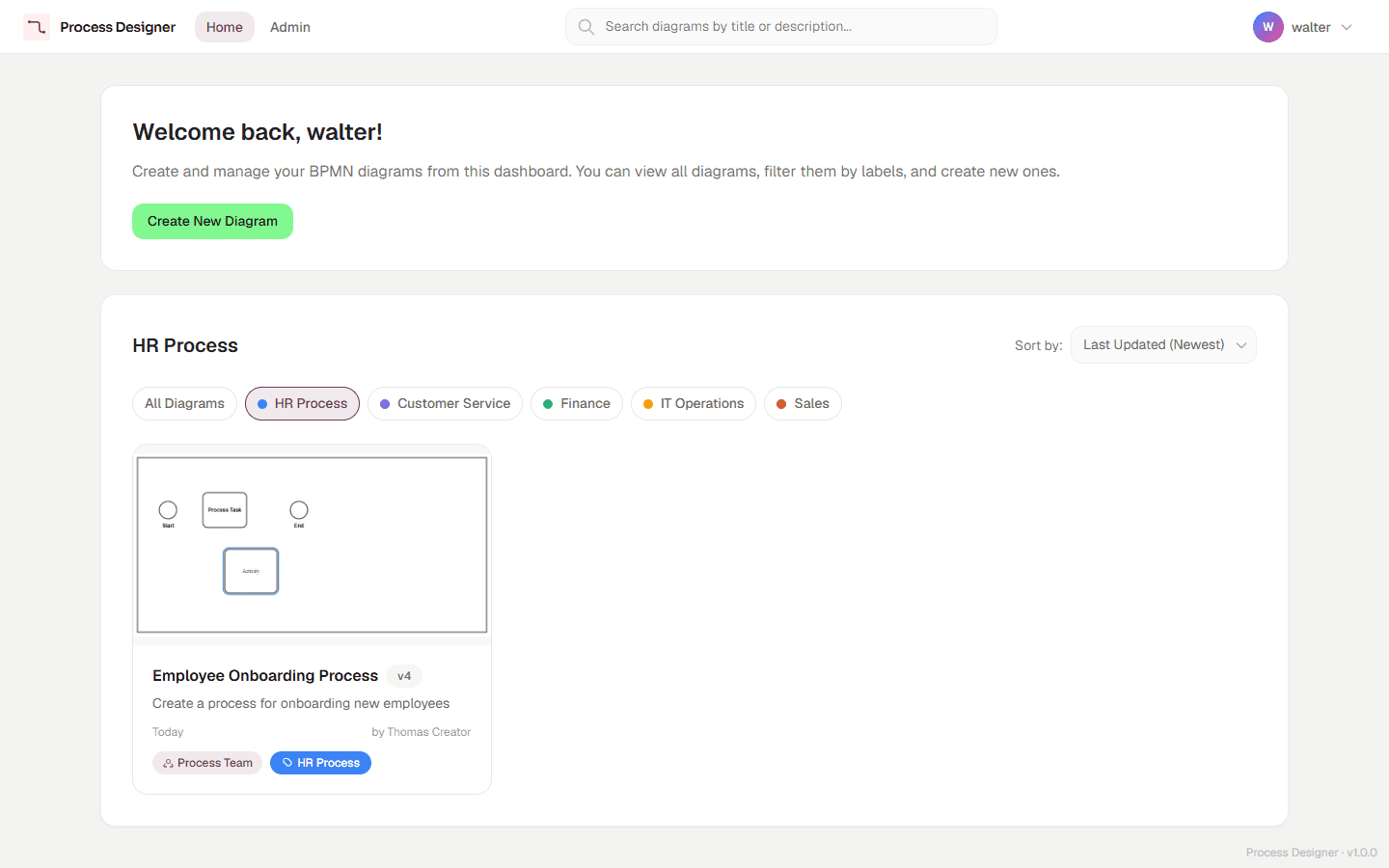
On the Home page, click Create New Diagram.
-
On the first screen of the wizard, enter the Diagram Title, choose the Group and, if your group has folders, the Folder. Click Next.
-
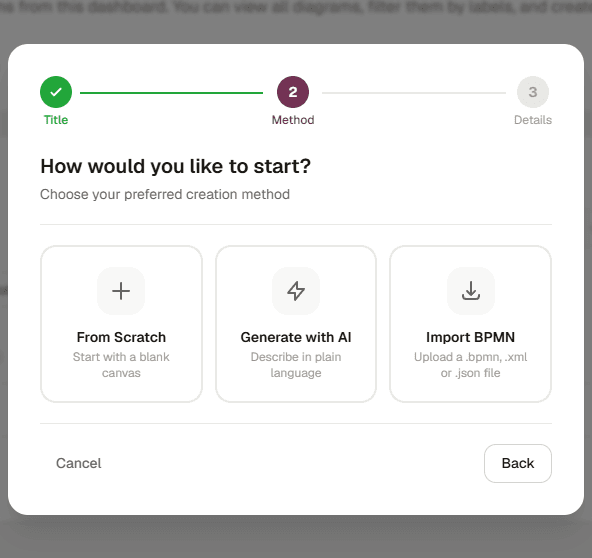
On the How would you like to start? screen, choose Generate with AI.
-
On the Describe your process screen, type a plain-language description of your process in Process Description. Write in English, and describe the steps and decisions in order, for example:
An employee submits a leave request. The manager reviews it. If approved, the request goes to HR for processing. If rejected, it returns to the employee for revision. -
Click Generate. The editor opens and a progress overlay advances through phases (queued, planning, generating, validating, finalizing). You can click Continue working to dismiss the overlay without cancelling — the generation keeps running and the diagram appears when it is ready.
-
When generation finishes, the diagram appears on the canvas, zoomed to fit. Review it, then refine it by editing elements directly or by using the Modify tab of the AI panel to apply further changes in natural language.
If AI is not available, the diagram is still created and the editor opens on the Welcome to your new diagram! dialog, where Generate with AI is greyed out. Choose Start from scratch, and ask your administrator to check the AI setup of the installation (see Prerequisites).
If generation fails, the error message shows a Support ID with a Copy button when the failure happened on the server or on the AI service: quote it when you ask for help (see The Support ID of an AI failure).
|
Generation typically takes 20–40 seconds. If you close or reload the tab while it is running, the editor reattaches to the job the next time you open the diagram in the same browser, and applies the result — after asking you to confirm if the canvas already has content. |
What’s next
-
Refine the result and learn the modify and analyze actions: AI diagram generation.
-
Hand-edit the generated diagram: Edit a diagram.
-
Send it to Bonita Studio: Export to Bonita Studio.