


Manage labels
Create, rename, recolor, feature, and delete the labels in the Bonita Process Designer catalog that organize diagrams across the application.
Labels categorize diagrams so users can group related processes and filter the home page. Managing the label catalog is an Admin-only task. Assigning labels to a diagram is a user task, covered in Organize diagrams with labels.
|
Only an Admin can create, rename, recolor, feature, or delete labels. See Roles and permissions. |
Open the label catalog
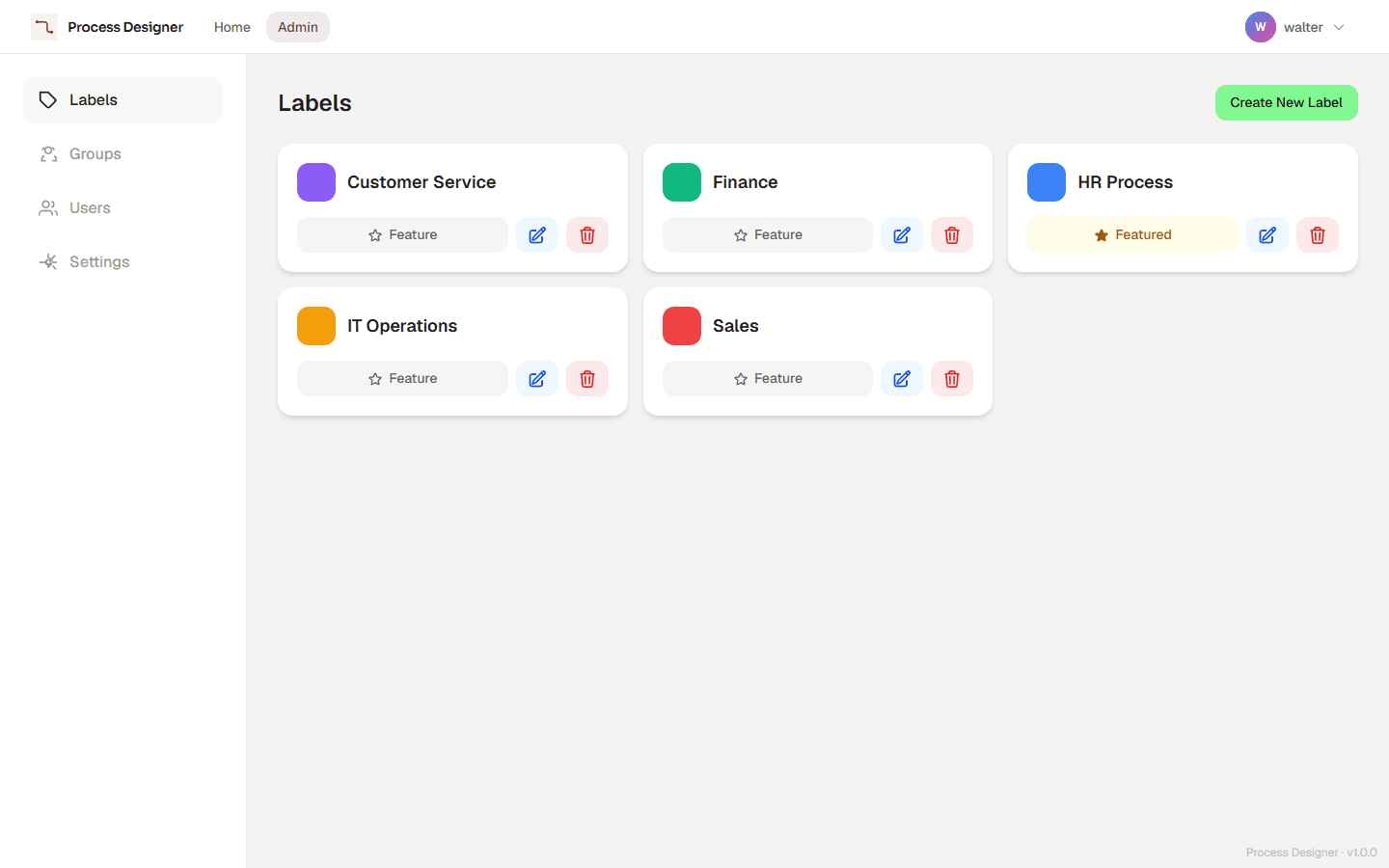
As an Admin, open the admin panel and go to the Labels section. The catalog lists every label with its name and color, and shows which label, if any, is currently featured.
Create a label
-
In the Labels section, choose Create label.
-
Enter a name. The name is required and must be unique across the catalog.
-
Optionally pick a color. If you do not set one, the label uses the default color
#667eea. -
Confirm to add the label to the catalog.
The new label immediately becomes available to every user when they tag diagrams or filter the home page.
Rename or recolor a label
Select a label in the list to edit it. You can change its name (still subject to the uniqueness rule) and its color. Saving updates the label everywhere it appears — on diagram cards and in the label chips of the home page — without affecting which diagrams carry it.
Feature a label
One label can be marked as featured. Only a single label can be featured at any time: marking a label as featured automatically unsets the previously featured one.
To feature a label, select Feature on its card ("Set as featured"). The button then reads Featured; select it again to remove the label from featured.
On the home page, for every user, the featured label’s chip is placed right after All Diagrams, and it is the filter already selected when the home page opens. Users can select All Diagrams at any time to see everything. See The featured label.
Delete a label
Choose Delete on a label’s row.
-
If the label is not used by any diagram, it is removed immediately.
-
If the label is in use, deletion requires confirmation. Once confirmed, the label is removed from the catalog and from every diagram that carries it. The diagrams themselves are not affected — they simply lose that tag.
Related pages
-
Organize diagrams with labels — how users assign labels and filter the home page.
-
Application settings — other Admin-only application options.