


Browse the process tree
Switch the home page to the Tree view to see folders, processes and the processes filed under them, and work with the tree from the mouse or the keyboard.
| Folders and the Tree view are available from Bonita Process Designer 1.1. |
The Tree view shows the same level of the home page as the List view, but as rows instead of cards, with the processes filed under other processes shown beneath their parent. It is also where you can move processes by drag and drop and from the keyboard.
In this page, a sub-process is a process filed under another process on the home page. It is not a BPMN sub-process and not a called process. See Words used on this page.
List and Tree views
Use the View: switch above the level to change the presentation:
-
List — "Show diagrams as cards": folder tiles, then process cards. See Manage diagrams.
-
Tree — "Show diagrams as a process hierarchy": one row per folder or process.
Both views show the level named by the breadcrumb (Home, or the folder you opened), and both apply the same filters: the label chips, Group: and My processes. Your choice of view is remembered by your browser.
While a search is active, the search results replace both views and the switch is inactive, with the explanation "The view switch does not apply while a search is active." Clear the search to return to the view you were using.
What the tree shows
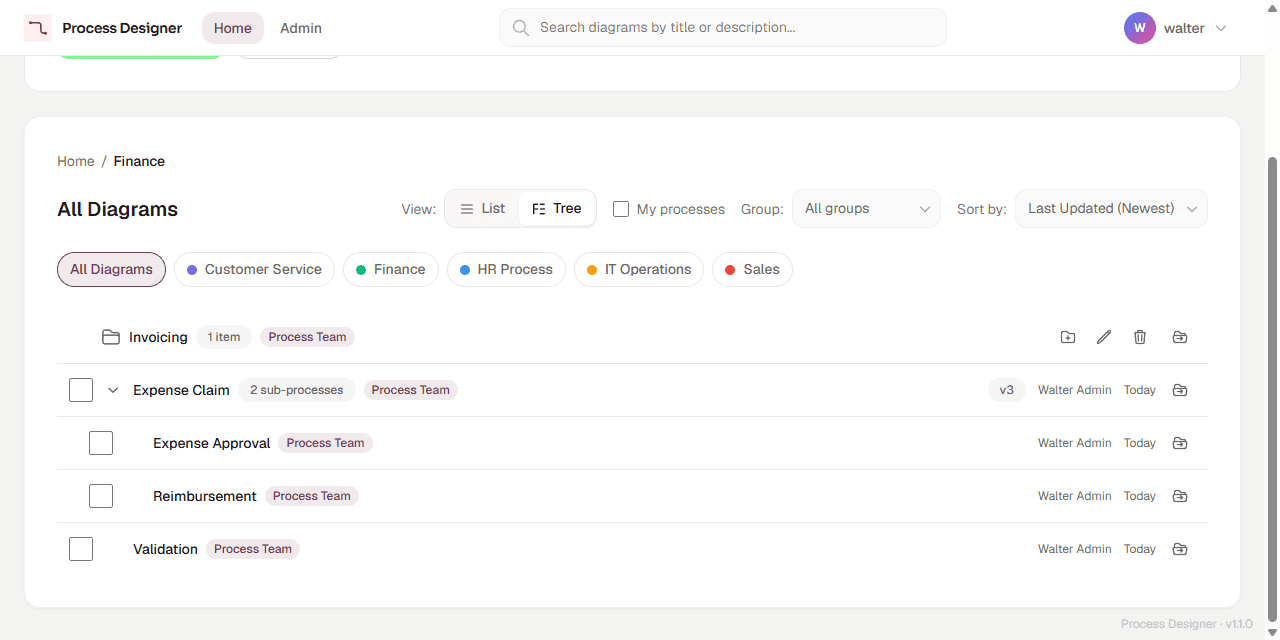
The tree lists the content of the current level, folders first, then processes, each sorted by name. The Sort by: setting applies to the List view and to search results, not to the tree.
-
A folder row shows the folder icon, its name, the number of items it contains (for example "1 item") and its group. Selecting the folder name opens the folder: a folder is entered, not expanded, and the breadcrumb follows.
-
A process row shows its title, the number of processes filed under it (for example "2 sub-processes"), its labels, its group, its author and the date of its last update. A star marks your favorites; you add and remove favorites from the List view.
-
The sub-processes of a process are shown indented under it once you expand it.
When a filter hides a process, the processes filed under it that match the filter are shown at the first level of the tree at Home, as if they were not filed under anything, even when the hidden parent is in a folder. Inside a folder, those processes are not shown: clear the filter, or search for them.
Expand, collapse and open
-
Select the arrow at the start of a process row to show or hide its sub-processes. The first time, a spinner replaces the arrow while they load. If the load fails, the arrow becomes a retry icon: select it to try again.
-
Select a process title to open the process in the editor.
-
Select a folder name to open the folder.
Keyboard reference
The tree is a single stop in the tab order: press Tab to reach it, then use the keys below on the focused row. On macOS, use Cmd instead of Ctrl.
| Key | Action |
|---|---|
Down Arrow / Up Arrow |
Move to the next or previous row. |
Home key / End key |
Move to the first or last row. |
Right Arrow |
Expand a collapsed process; on an expanded one, move to its first sub-process. |
Left Arrow |
Collapse an expanded process; otherwise move to the parent row. |
Enter or Space |
Open the process in the editor, or open the folder. |
Ctrl+Space |
Select or deselect the focused process. |
Shift+Down Arrow / Shift+Up Arrow |
Extend the selection to the next or previous row. |
M |
Move the focused row with Move to…. When processes are selected, move the selection. |
N |
On a folder row, create a folder inside it. |
F2 |
On a folder row, rename the folder. |
Delete |
On a folder row, delete the folder. |
Shift+F10 or the Menu key |
Open the actions of the focused row. |
Selecting, moving, creating, renaming and deleting are for Creators and Admins. Screen readers announce a short summary of these keys when focus reaches the tree.
Row actions and context menu
Creators and Admins see icon buttons at the right end of each row; hover over one to see its name. Every row has Move to…; folder rows also have New folder in "Name", Rename folder "Name" and Delete folder "Name".
Right-click a row, or press Shift+F10 or the Menu key, to open its context menu. It offers the actions available on that row, among Open, New folder here, Rename, Move to… and Delete. Use the arrow keys to choose an entry, Enter to run it and Esc to close the menu.
Move processes from the tree
The Tree view supports every way of moving processes: the Move to… icon button and the M key, drag and drop onto a folder row, a process row or the Move to Home band, and multi-selection with Move selection… and Undo. See Move processes.
The tree for Readers
For a Reader, the tree is read-only. A Reader can expand and collapse processes, open processes and folders, and use the context menu to open a process. The checkboxes, the row icon buttons and drag and drop are not shown. Selecting, moving, creating, renaming and deleting are for Creators and Admins: a Reader who tries to move processes from the keyboard gets "You do not have permission to file processes."