


Comment on diagrams
Discuss and review a diagram with your team by adding, reading, searching and deleting comments directly in the editor.
Comments let you collaborate on a diagram without changing it. Every comment is attached to a single diagram, shown in the editor sidebar, and tagged with its author and the time it was posted. Comments are a lightweight conversation thread: there are no replies, mentions, attachments or reactions.
Who can comment
Anyone who can open a diagram can comment on it, including users with the Reader role. Because diagrams are scoped to groups, you can only comment on diagrams in groups you belong to. For how roles and groups control access, see Roles and permissions.
| Action | Who can do it |
|---|---|
Add a comment |
Any user who can view the diagram (Reader, Creator, Admin) |
Read comments |
Any user who can view the diagram |
Delete a comment |
Only its author, whatever their role: an Admin cannot delete other people’s comments |
Open the comments panel
Open a diagram in the editor, then select the Comments tab in the sidebar. The tab shows a count badge with the total number of comments on the diagram. The badge is hidden when there are no comments, and shows 99+ when the count is above 99.
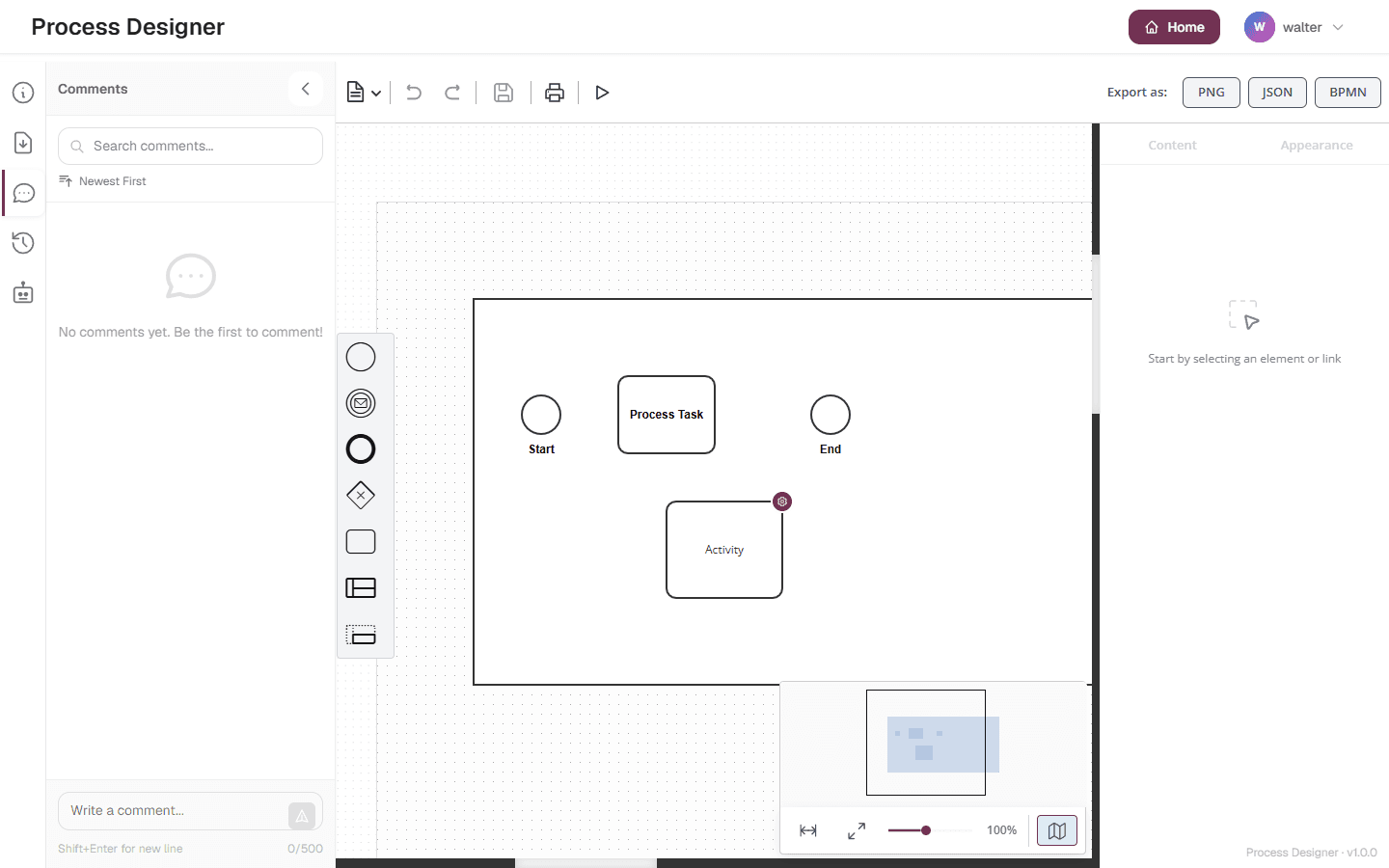
Add a comment
-
Open the Comments tab.
-
Type your message in the input box at the bottom of the panel. A counter shows how many of the 500 allowed characters you have used (for example
120/500). -
Press Enter to post the comment, or use Shift+Enter to add a line break without sending.
A comment cannot be empty or contain only spaces, and it cannot exceed 500 characters. Your comments appear aligned to one side of the thread, and other people’s comments to the other side, so the conversation is easy to follow.
| Comments do not update in real time. Comments that other people post while you have the diagram open appear when you post a comment, change the sort order or the search, or reload the page. |
Read and search comments
The panel lists comments newest first by default. You can:
-
Sort the thread with the sort control, switching between Newest First and Oldest First.
-
Search the thread with the Search comments... field. Searching matches both the comment text and the author’s name, and is case-insensitive.
-
Scroll to load more comments automatically as you reach the end of the list.
Each comment shows the author’s display name, the message, and the date and time it was posted. If the author’s account has since been removed, their name is still shown, followed by (deleted), so the history stays readable.
Delete a comment
You can delete a comment you wrote: point at the comment, select its Delete comment button, then confirm with Delete when asked "Are you sure you want to delete this comment?". Only the author of a comment has this button, and only the author can delete it: this also applies to Admins, who cannot delete other people’s comments.
Known limitation: once the account of a comment’s author is deleted, nobody can delete that comment any more. It is removed with its diagram.
Deleting a comment is permanent — there is no undo, and comments cannot be edited after posting. If you need to correct a comment, delete it and post a new one.
|
When a diagram is deleted, all of its comments are removed with it. |
Related topics
-
Collaborate in real time — co-edit the same diagram live.
-
Roles and permissions — how roles and groups control who can comment.