


Supported BPMN elements
The BPMN 2.0 elements you can use in Bonita Process Designer, why the palette is a curated subset for Bonita Studio compatibility, and how unsupported elements are converted, removed or skipped when you import a file.
Bonita Process Designer exposes a curated subset of the BPMN 2.0 notation. The editor deliberately offers only the elements that import cleanly into Bonita Studio, so that every diagram you build here can be exported and reused in Studio without manual rework. When you import a BPMN or JSON file, any element outside this subset is converted to the closest supported element, or removed when no equivalent exists, and the Import Logs tab lists every element converted, removed or skipped, with the exceptions listed in Not reported in Import Logs.
Why the palette is a subset
The element set is chosen for round-trip compatibility with Bonita Studio. A few consequences are worth knowing up front:
-
BPMN sub-processes are not offered. Although Bonita Studio supports them, they are intentionally excluded from this editor. On import, a sub-process is converted to a Call Activity. To split a process into parts, call another diagram from a Call Activity (see Call Activity).
-
Generic (no-trigger) intermediate and boundary events are not offered. An intermediate or boundary event without a trigger has no meaning on its own, so it is removed on import rather than converted.
-
Nothing that Bonita Studio cannot receive is offered, down to details of an element: activities have no compensation marker (see Activity markers).
Supported elements
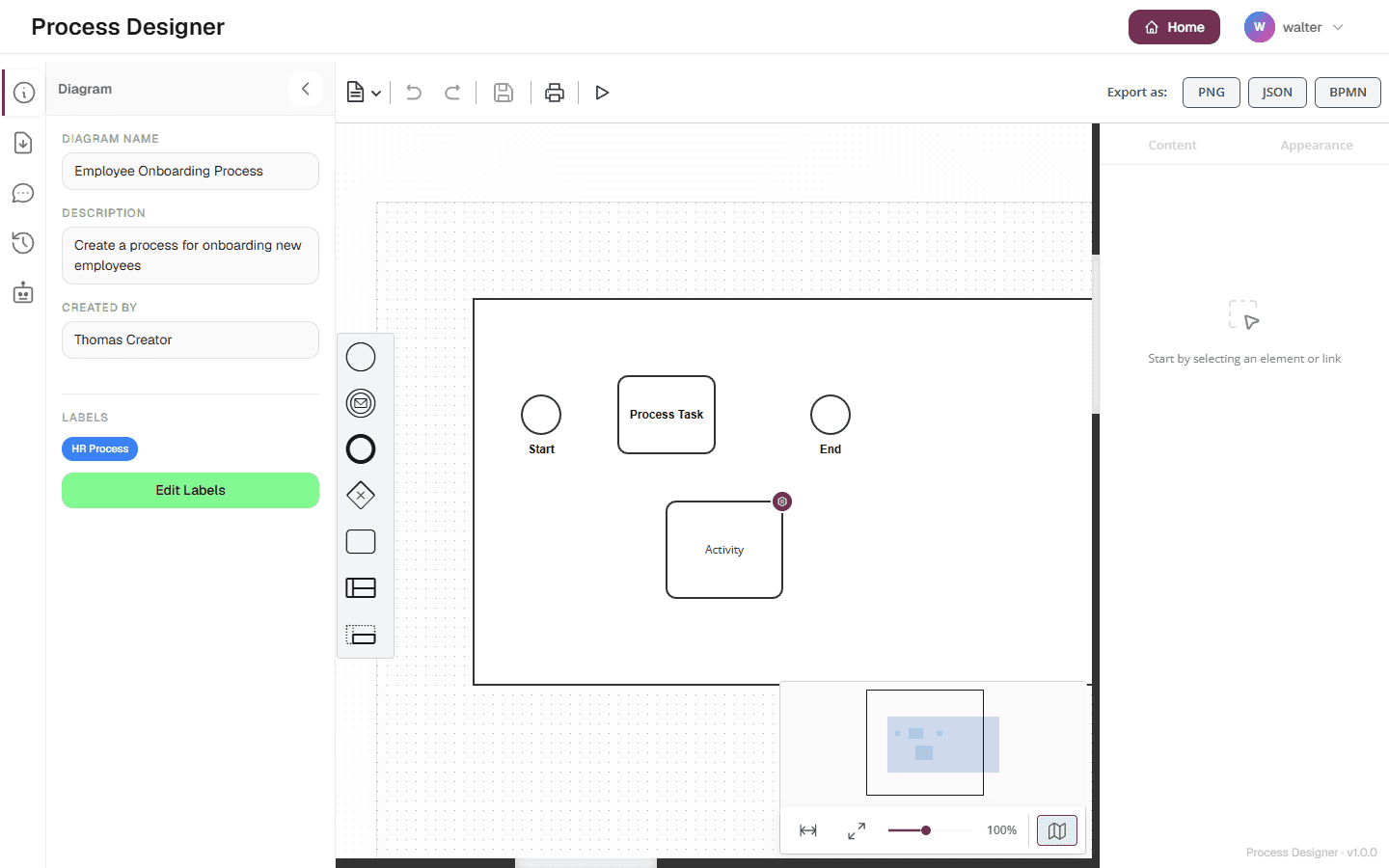
The palette on the left of the canvas holds one generic shape per family: Start event, Intermediate event, End event, Gateway, Task, Pool, and Swimlane. Drop one on the canvas, then choose its exact type in the inspector on the right, under Available shapes. The following types are available and are preserved on import and export.
| Category | Supported elements |
|---|---|
Activities |
Task, User task, Service task, Script task, Send task, Receive task, Call Activity |
Gateways |
Exclusive gateway (XOR), Inclusive gateway (OR), Parallel gateway (AND) |
Start events |
Start event, Message start, Timer start, Signal start |
End events |
End event, Message end, Signal end, Error end, Termination end |
Intermediate catching events |
Message catch, Timer catch, Signal catch, Link catch |
Intermediate throwing events |
Message throw, Signal throw, Link throw |
Boundary events (interrupting) |
Message boundary, Timer boundary, Signal boundary, Error boundary |
Boundary events (non-interrupting) |
Timer boundary (non-interrupting) |
Flows |
Sequence flow, Default flow, Conditional flow |
Containers and annotations |
Horizontal pool, Horizontal swimlane, Annotation, Annotation link |
| The editor does not offer a generic "error event" type. Error handling is available through the Error end event and the Error boundary event. |
When you select an activity, a gateway, or any event other than an End event, the buttons around it add a connected End event, Gateway, Task, or Annotation, or draw a sequence flow; around an End event, they only add an Annotation or draw a flow. There is no button that adds a plain intermediate throwing event, since Bonita Studio cannot receive one: to add an intermediate event, drop it from the palette and choose its type.
Call Activity
A Call Activity calls another diagram of Bonita Process Designer. Admins and Creators choose the called process in the Called process panel, shown when the Call Activity is selected. Everyone, Readers included, can open the called process with the badge displayed on the Call Activity. The called process is kept when you save, export, and re-import the diagram; the activity’s markers are not restored from a BPMN file (see Activity markers). See Call other processes.
When you export to BPMN, the call is written so that Bonita Studio resolves it by the name of the called process — for a process included in a BPMN+ file, the name of its Pool. Give the processes you call distinct titles and their Pools distinct names: two processes with the same name would both match, and Bonita Process Designer does not warn you in every case. See Processes with the same name.
A call imported from a file produced by another tool, which names its target process by name rather than by a Bonita Process Designer identifier, is not kept: the Call Activity is imported without a called process. The Import Logs tab does not report it.
Activity markers
In the inspector, under Available markers, an activity can carry a parallel multi-instance, sequential multi-instance, or loop marker. A Call Activity can also carry an ad hoc marker. The ad hoc marker is kept in the diagram and in JSON exports, but it is not written to BPMN files, so it does not reach Bonita Studio.
Loop and multi-instance markers are written to BPMN files, but they are not restored when you import a BPMN file, even one exported by Bonita Process Designer: the activities are imported without them, and the Import Logs tab does not report it. A JSON file keeps them.
There is no compensation marker: in BPMN it makes the activity a compensation activity, and Bonita Studio has no compensation concept to receive it. When you import a BPMN file in which an activity carries a compensation marker, the activity is imported without it, and the Import Logs tab reports it as Converted, with the reason "Compensation marker removed - Bonita Studio has no compensation concept. The activity itself was imported unchanged." A JSON file keeps the marker.
What happens to unsupported elements on import
When you import a BPMN or JSON file, Bonita Process Designer inspects every element. Elements outside the supported subset are handled automatically:
-
Converted — replaced by the closest supported element (for example, a Manual task becomes a Task).
-
Removed — dropped when no meaningful equivalent exists (for example, a Data object or a Message flow). A flow connected to a removed element is removed with it.
-
Not imported — elements of a BPMN file that the editor could not build at all. The typical case is the actor participant that Bonita Studio adds to every new diagram: it has no shape in the file, so it is skipped, and the rest of the file is imported.
The following table lists every conversion and removal.
| Unsupported element | Result | Reason |
|---|---|---|
Manual task |
Task |
Generic fallback |
Business rule task |
Service task |
Both are automated |
Sub-process |
Call Activity |
Closest concept |
Event sub-process |
removed |
No equivalent in Bonita Studio |
Event-based gateway, Complex gateway |
Exclusive gateway |
Decision point |
Conditional start |
Start event |
Condition dropped |
Escalation end, Compensation end, Cancel end |
End event |
Generic end |
Intermediate catching or throwing event without a trigger |
removed |
Meaningless without a trigger |
Conditional catch |
Timer catch |
Wait-based trigger |
Escalation throw |
Signal throw |
Not supported by Bonita Studio |
Compensation throw |
removed |
No equivalent |
Boundary event without a trigger |
removed |
Meaningless without a trigger |
Conditional boundary |
Timer boundary |
Wait-based trigger |
Escalation boundary |
Error boundary |
Exception handling |
Compensation boundary, Cancel boundary |
removed |
No equivalent |
Message boundary (non-interrupting), Signal boundary (non-interrupting) |
The same boundary, interrupting |
Only the Timer boundary exists in non-interrupting form |
Conditional boundary (non-interrupting) |
Timer boundary (non-interrupting) |
Wait-based trigger |
Escalation boundary (non-interrupting) |
removed |
No equivalent |
Data object, Data store, Data input, Data output, Data association |
removed |
Not supported by Bonita Studio |
Message flow |
removed |
Cross-pool communication not supported |
Vertical pool, Vertical swimlane |
Horizontal pool, Horizontal swimlane |
Only horizontal Pools are supported |
Group |
removed |
Visual only, no semantics |
Review the changes in the Import Logs tab
Every conversion, removal, and skipped element is listed in the Import Logs tab of the left sidebar, which opens after the import. Review each entry and mark it as handled; see The Import Logs tab.
Related pages
-
Edit a diagram — build a diagram from the palette.
-
Export and import diagrams — export to Bonita Studio, and import BPMN or JSON files.
-
Export a diagram to Bonita Studio — the procedure, step by step.