


Manage diagrams
Create, find, open, save, and delete BPMN diagrams from the Bonita Process Designer home page.
This page covers the day-to-day lifecycle of a diagram: creating one, finding it again on the home page, opening it in the editor, saving it, and removing it when it is no longer needed. In Bonita Process Designer, "diagram" and "process" mean the same thing. To learn how to draw and connect elements once a diagram is open, see Edit a diagram. To sort your processes into folders, see Organize processes in folders.
Who can do what
What you can do with diagrams depends on your role and on the groups you belong to:
-
Reader — view diagrams (in read-only mode) and read or add comments. Readers cannot create, edit, move, or delete diagrams.
-
Creator — create diagrams in the groups they belong to, and edit, move, or delete any diagram in those groups.
-
Admin — full access to every diagram across all groups.
Diagrams are scoped to groups: you only see and act on diagrams in the groups you belong to. Admins see all diagrams. For the full rights matrix, see Roles and permissions.
Create a diagram
Creators and Admins create a diagram with the Create New Diagram wizard, from the home page; Readers do not see the button. The wizard has three steps, shown at the top: Title, Method and Details. Once you choose a method, the third step is named AI Prompt or Import.
-
Select Create New Diagram.
-
On the first step, fill in:
-
Diagram Title (required).
-
Group — the group the diagram belongs to. A Creator must choose one of their groups; an Admin can also choose — No group —.
-
Folder — where the diagram is filed. It is pre-filled with the folder you are in, and lists the folders of the chosen group, each with its full path, for example
Finance / Invoicing; changing the group changes the list. — No folder — files the diagram at Home. The field is hidden when the chosen group has no folder.
-
-
Select Next.
-
On the Method step, choose how to start:
-
From Scratch — "Start with a blank canvas". The diagram is created and opens in the editor at once.
-
Generate with AI — "Describe in plain language". The last step asks for a Process Description; select Generate to create the diagram and generate its content with AI.
-
Import BPMN — "Upload a .bpmn, .xml or .json file". The last step asks you to choose the file; select Import to create the diagram and load the file into it. See Export and import diagrams.
-
A Creator who belongs to no group cannot create a diagram: the Create New Diagram button is disabled, with the note "Join a group to create diagrams — ask an administrator to add you to one." See Create your first diagram for a full walkthrough.
The home page
The home page shows one level at a time: Home, the top level, or the folder you opened. The breadcrumb above the level says where you are. The level shows its folders first, as tiles, then the diagrams filed directly in it, as cards.
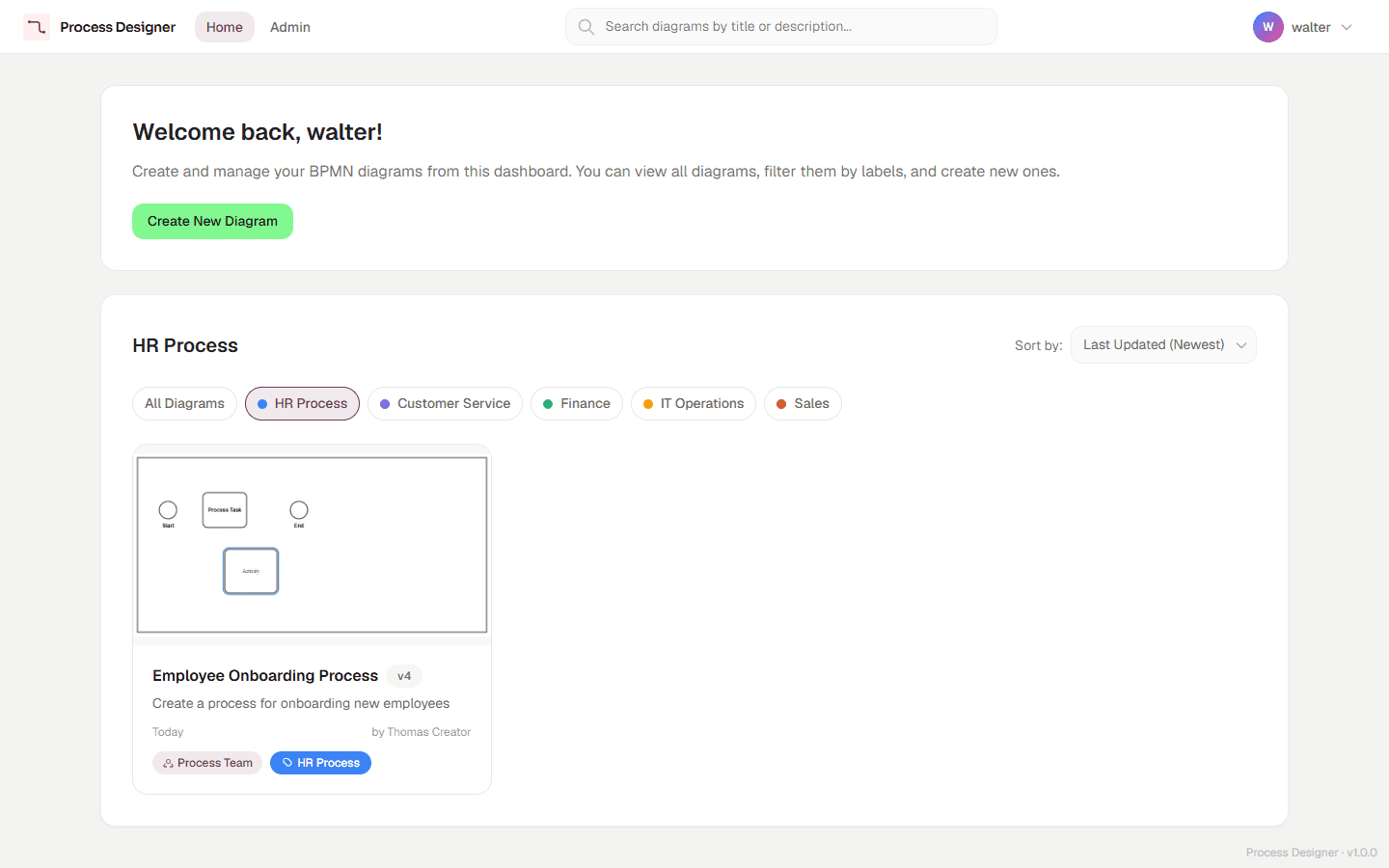
A diagram filed under another diagram is not shown as a card. It appears under its parent in the Tree view, and in search results, which show its filing path. Use View: to switch between the List of cards and the Tree; see Browse the process tree.
Diagram cards and folder tiles
Each diagram card shows:
-
a thumbnail, a preview of the canvas;
-
the title, followed, once the diagram has been saved, by a badge with its current version number, for example
v3(see Version your diagrams); -
the filing path, when the diagram is in a folder or under another diagram, for example
Finance / Expense Claim. Each segment of the path can be clicked. A folder segment opens that folder, a diagram segment opens the Tree view expanded down to it. A level you do not have access to is shown as "Level not accessible", without a link. A diagram at Home has no path; -
a short excerpt of the description, the date of the last update and the author;
-
its group and its labels.
The card’s menu (the three dots) offers Open, Edit labels, Move to… and Delete. Readers only see Open. Creators and Admins also see a checkbox in the top-left corner of each card, used to select several diagrams and move them together; see Move processes.
A folder tile shows the folder’s name and group. Select it to open the folder. For Creators and Admins, its menu offers New folder in "Name", Rename folder "Name", Move to… and Delete folder "Name"; see Organize processes in folders.
Search
Type in the search field of the page header, "Search diagrams by title or description...". The search matches the title and the description of every diagram you can access, whatever the level you are on, and ignores letter case.
While a search is active, a list of results replaces the level. It starts with the number of results, for example "2 results". Each result shows the diagram’s filing path followed by its title:
-
select the title to open the diagram;
-
select a folder of the path to open that folder;
-
select a diagram of the path to open the Tree view expanded down to it.
A level you do not have access to is shown as "Level not accessible", without a link.
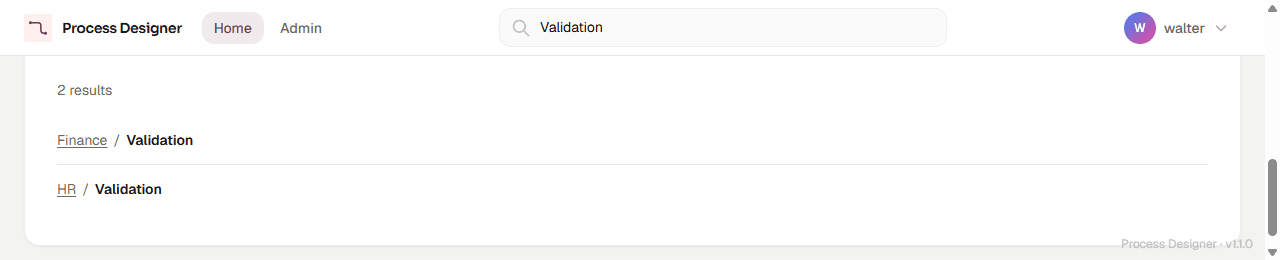
The filters below also apply to the results. Clear the search field to return to the level and the view you were using; opening a folder also clears the search. The search field of the editor header opens the home page with the same search.
Filter
The filters combine with each other, and apply to the List view, the Tree view and the search results.
-
Label chips — select a chip to show only the diagrams that carry that label; select All Diagrams to clear the filter. If an Admin has marked a label as featured, its chip comes right after All Diagrams and is selected when you open the home page. The section title then shows the label’s name.
-
Group: — shown when you belong to two or more groups (Admins see every group). Choose a group to show only its diagrams and folders, or All groups.
-
My processes — "Show only the processes I created".
The label and My processes filters apply to diagrams; folder tiles stay visible.
Sort
Use Sort by: to order the diagram cards and the search results: Last Updated (Newest) (the default), Last Updated (Oldest), Created (Newest), Created (Oldest), Title (A → Z) or Title (Z → A). Folder tiles, and the rows of the Tree view, are sorted by name.
Favorites
Select the star on a card to Add to favorites, and again to Remove from favorites. Favorites are personal: every user, whatever their role, has their own. When the level shown contains favorites, the cards are split into two sections, Favorites first, then Other diagrams. In the Tree view, a star marks your favorites.
Open a diagram
Select a diagram card, or Open in its menu, to open it in the editor. Readers open the diagram in read-only mode; Creators and Admins open it in edit mode.
When several people open the same diagram, they edit it together in real time — see Collaborate in real time.
Save your work
Bonita Process Designer saves your changes automatically while you edit, at an interval set by an administrator (see Application settings). To save at once, select Save in the editor. The editor shows "Diagram saved" only once the save has succeeded; if it fails, an error message says so and your changes stay unsaved. Each save also refreshes the diagram’s thumbnail, so the card preview stays current. For details, see Save your work.
Delete a diagram
Creators can delete any diagram in their groups; Admins can delete any diagram. Readers cannot delete diagrams.
-
On the diagram’s card, open the menu (the three dots) and select Delete.
-
The Delete Diagram dialog asks you to confirm, and warns: "This action cannot be undone."
-
If other diagrams call this one through a Call Activity, the dialog lists them, for example "1 process calls this diagram and will be left with a broken call:", and says how many of them you do not have access to. You can still delete the diagram. See Delete a process that other processes call.
-
Select Delete.
Deleting a diagram also removes its comments and its versions. The diagrams filed under it are not deleted: they move to Home. The dialog does not list them. Deletion is permanent, so confirm that the diagram is no longer needed before you proceed.