


AI diagram generation
Generate a BPMN diagram from a natural-language description, and use the modify and analyze actions to refine an existing diagram with AI.
With AI generation you describe a business process in plain English and Bonita Process Designer builds a complete BPMN diagram for you on the canvas. Two companion actions let you keep working with AI once a diagram exists: Modify applies a natural-language change to the current diagram, and Analyze returns a written analysis without touching the canvas.
|
AI generation requires the Creator or Admin role. Readers cannot generate, modify, or analyze diagrams. |
Prerequisites
Before the AI features are available, the installation must be set up by an Admin:
-
The installation is registered (company name supplied during first-time setup).
-
AI generation is enabled and an AI provider is configured.
If either condition is not met, the AI actions are unavailable. When a new diagram opens on its welcome dialog, Generate with AI is greyed out and reads either Ask an administrator to configure AI (the installation is not registered, or AI is not enabled for it, for example because AI consent was withdrawn: contact your Admin) or AI generation is currently unavailable (the AI status could not be read: reload the page, and contact your Admin if it persists). If the AI service itself is down, the option is not greyed out: the request fails instead (see When an AI request fails). See First-time setup and Application settings.
Generate a diagram from text
The quickest way is to choose AI when you create the diagram:
-
On the Home page, click Create New Diagram.
-
In step 1 of the wizard, enter the Diagram Title and choose the Group (and, when your group has folders, the Folder), then click Next.
-
In step 2, How would you like to start?, choose Generate with AI.
-
In step 3, Describe your process, type your description in Process Description and click Generate.
The diagram is created, the editor opens and generation starts on its own. The wizard’s Generate with AI choice is never greyed out: if AI turns out to be unavailable for the installation, the diagram is still created, and the editor opens on the Welcome to your new diagram! dialog, where you can choose Start from scratch. If the request is refused because AI is not enabled (AI generation is not enabled. Ask an administrator to configure it.), you are taken back to the Home page and the empty diagram is deleted.
You can also generate from the editor, on a diagram you are working on:
-
Click the AI panel icon in the bar on the far left of the editor.
-
In the Generate tab, type a description of the process you want. A live character counter shows how many characters remain. In the AI panel, the maximum is configurable by an Admin (default 500 characters; range 200–2000); the wizard’s Process Description field has no such limit. English prompts only.
-
Optionally pick an AI provider for this generation (see Choosing an AI provider).
-
Click Generate Diagram.
If the canvas is not empty, you are asked to confirm first: Replace the current diagram? — the generated diagram replaces everything on the canvas.
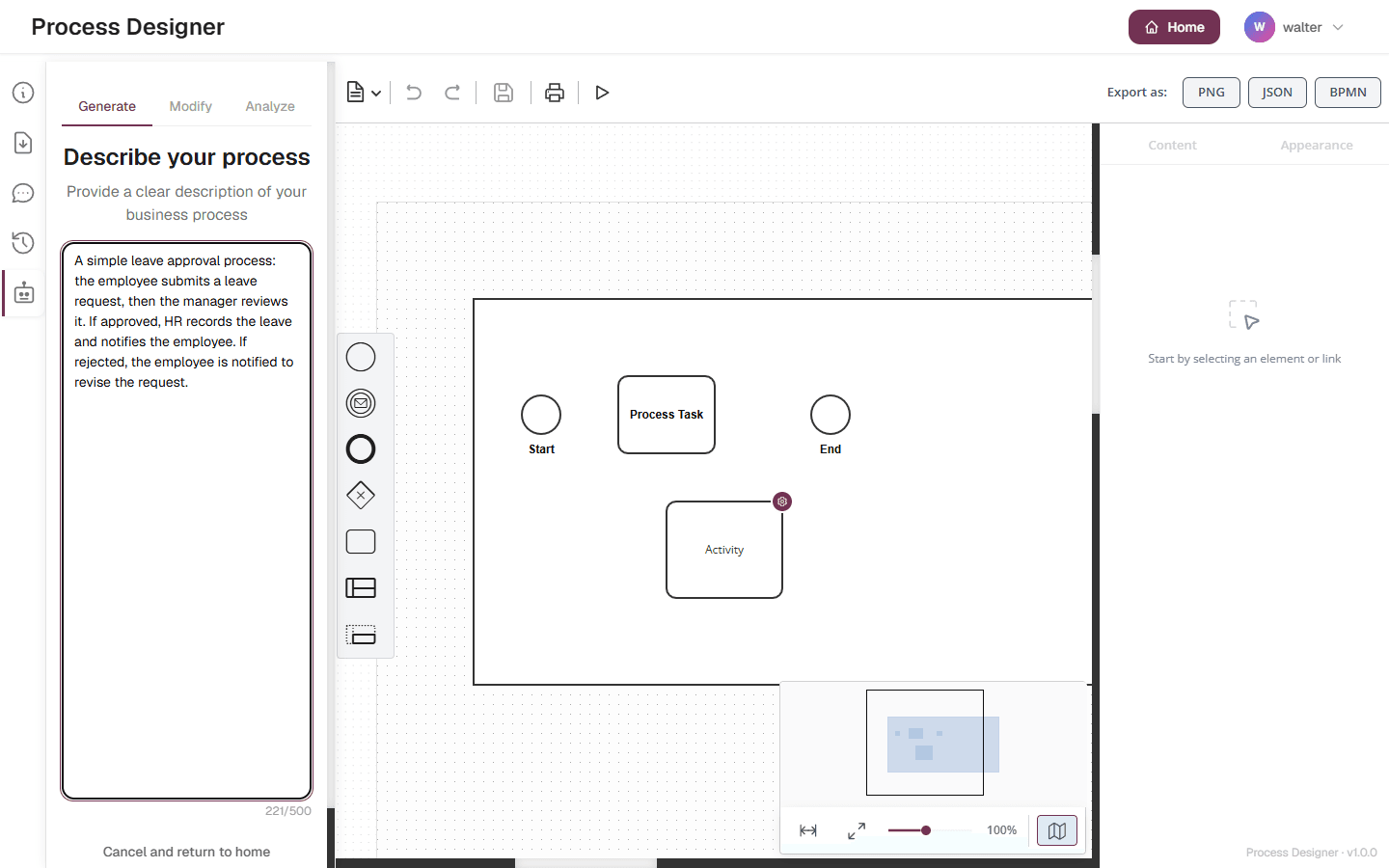
A clear, structured description gives the best result. For example:
A simple approval process: the user submits a request, the manager reviews it.
If approved, it goes to execution. If rejected, it returns to the user for revision.
How generation runs (background job and progress)
Generation runs as a background job, so it survives a closed tab, a network drop, or a proxy that cuts the connection. The diagram is still produced and delivered to you when you return.
After you submit, a progress overlay opens and the bar advances through honest, phase-based steps:
| Phase | What is happening |
|---|---|
Queued |
Submitted, waiting for a worker slot. |
Planning |
The structure of the process is being planned. |
Generating |
The diagram is being produced (the longest phase). |
Validating |
The generated BPMN is being checked. |
Finalizing |
Layout is applied and the result is finished. |
When an estimated time is known, the bar fills smoothly toward the next phase; otherwise it shows an indeterminate pulse rather than a fabricated percentage. Click Continue working to dismiss the overlay without cancelling — the job keeps running and the result is imported when it completes. What you change on the canvas meanwhile is replaced by the result: see Other people are paused while AI edits.
When the job succeeds, the diagram is placed on the canvas, zoomed to fit, and saved automatically. Review it before you export it: a generated diagram is not passed through the element conversion that a file import applies, and it does not produce entries in the Import Logs tab.
If you close or reload the editor while a job is in flight, Bonita Process Designer reattaches to it the next time you open the diagram in the same browser: a running job resumes its progress display, a job that finished while you were away is applied when you return, and a result that is no longer available shows a warning. If the canvas already has content, you are first asked to confirm the replacement: Replace the current diagram? If you decline, the result is discarded: Kept your current diagram — the generated result was discarded. The result of a finished job is kept for 24 hours by default; the person who installs Bonita Process Designer can change this with a server setting.
Modify and analyze an existing diagram
Open the AI panel from the bar on the far left of the editor. It has Generate, Modify, and Analyze tabs.
-
Modify — describe a change (for example, "Add a manager approval step after the first task") and click Apply. You are asked to confirm that the result will replace your current diagram. The modified diagram then replaces the canvas; your zoom level and position are kept.
-
Analyze — ask a question about the current diagram (for example, "What are the bottleneck risks?"), or leave it blank for a general analysis, and click Analyze. The answer is shown as text in the panel; the canvas is untouched.
Modify and Analyze run as background jobs, like generation. While one runs, the panel shows a progress bar, an elapsed-seconds counter and a message such as AI is applying your change — this may take 20-40 seconds. If you reload the editor meanwhile, the job is picked up again when you come back, in the same way as a generation: Resuming your in-progress AI change… or Resuming your in-progress analysis….
Other people are paused while AI edits
While a Generate or Modify request runs on a diagram, the people editing it with you are paused: their editor shows AI is editing this diagram for <name> — editing is paused until it finishes., and they cannot change the diagram until the lock lifts, shortly after the request is over. You, the person who started the request, can keep working, but what you change meanwhile is replaced when the result arrives: you are first asked Replace the current diagram?, and if you decline, the result is discarded. Analyze does not pause anyone. See While AI is editing the diagram.
Choosing an AI provider
Each tab of the AI panel has an AI provider list. It opens on the provider your Admin set as preferred, when there is one, and otherwise on Default (configured provider). You can pick another configured provider. Your choice applies to that one request only — it does not change the installation default and is not remembered for the next request. When no provider is configured, the list is disabled and the hint under it reads No AI provider is configured — ask an administrator.
When an AI request fails
A failed request shows a message explaining what went wrong, for example The AI service is temporarily unavailable. Please try again in a moment. or The AI generation took too long and was stopped. Please try again. Most failures are temporary: try again.
When the failure happened on the server or on the AI service, the message also shows a Support ID with a Copy button (Quote this ID when you contact Bonitasoft support.). For Generate, the ID appears in a notification that stays until you close it; for Modify and Analyze, it appears in the AI panel. Give this ID to your administrator or to Ofelia Support: it identifies your request, on the AI service too. See The Support ID of an AI failure.
When generation of a new, empty diagram fails, the welcome dialog opens again so that you can retry or start from scratch.
AI generation quota
Each group can have a cap on the number of AI requests it may run over a rolling 30-day window. The cap is set per group by an Admin and is shared by everyone in the group, regardless of role.
-
Generate and Modify count against the quota. A request that fails is not counted.
-
Analyze does not count (it is read-only).
The window is rolling: there is no scheduled reset. Older requests simply age out of the 30-day window, freeing capacity again.
When a group is at its limit, the request is refused before any AI work starts, with the message Your group has reached its AI generation quota for the last 30 days. Ask an administrator to raise the limit. Wait for usage to age out of the window, or ask an Admin to raise the limit.
For setting and monitoring quotas, see Manage AI quota.
Limitations
-
English-language prompts only.
-
In the AI panel, prompt length is limited (200–2000 characters, default 500).
-
Generation typically takes 20–40 seconds; a job that runs too long is stopped and can be retried.
-
A finished result is kept for a limited time (24 hours by default); if you return after that, run the request again.
-
Very complex processes may not generate accurately — review and refine the result.
-
The AI service must be reachable from the installation.