


Simulate a process
Run a token through a diagram in Bonita Process Designer to visualise the flow logic, choose branches at gateways, and validate your process before exporting it.
Process simulation lets the editor "play" a diagram: a token travels from a start event along the sequence flows, pausing for you to choose a branch at decision gateways, until it reaches an end event. Simulation is a design-time aid to validate the flow logic of a diagram before exporting it — it is not a runtime engine and executes nothing. Nothing is persisted, and no back end is involved.
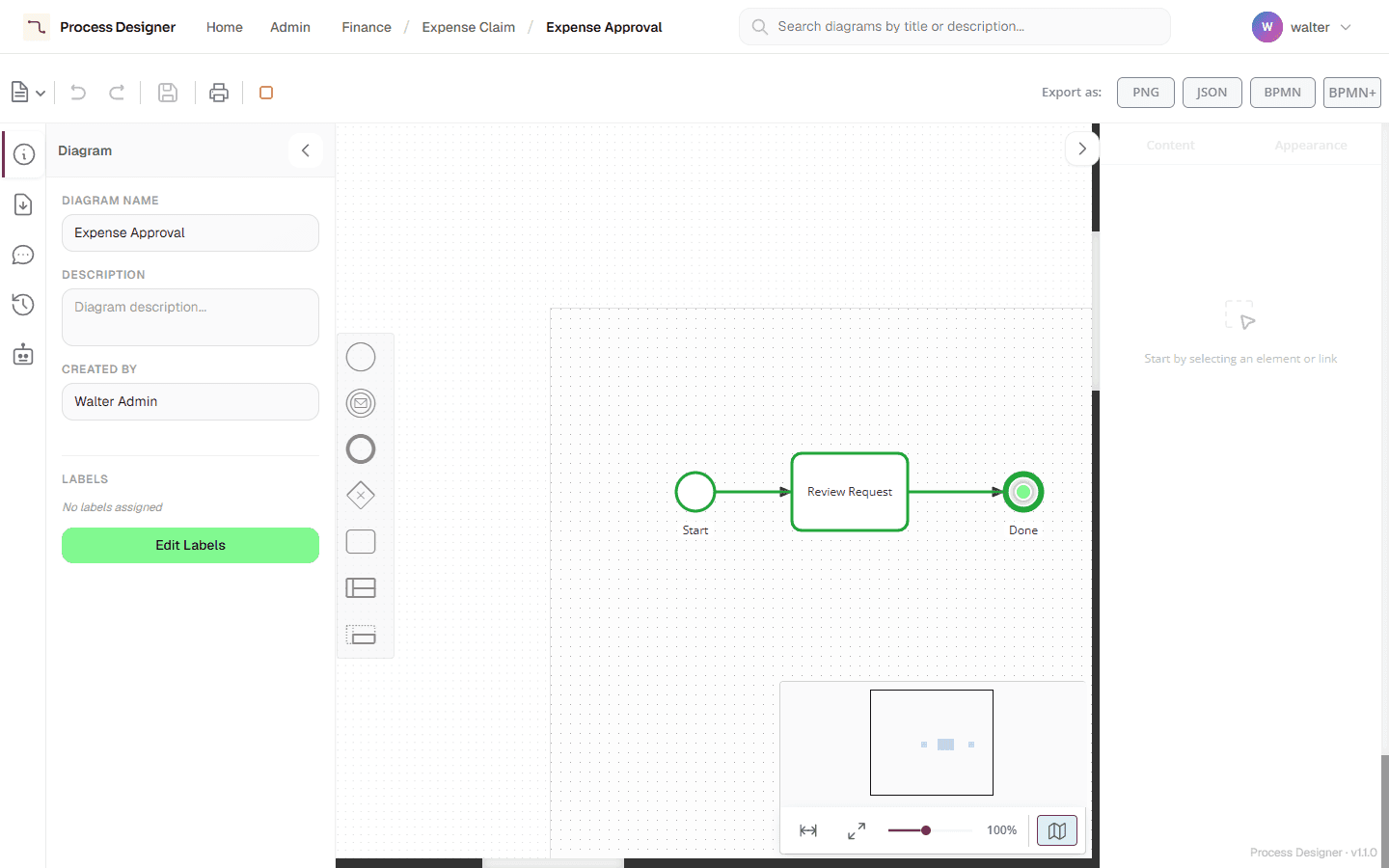
Start a simulation
-
Open a diagram in the editor.
-
Click the ▶ Simulate process button in the toolbar (in the left group, after Print).
-
A green token appears on the start event and begins traversing the diagram. Visited elements and flows are highlighted in green as the token passes.
-
The ▶ button is replaced by a red ■ Stop simulation button.
If the diagram has several start events, the start events are highlighted and you pick which one to run from: click it, or press its number. Press Esc to stop the simulation instead.
While a simulation is running, the canvas is locked: the palette, inspector and the rest of the toolbar are dimmed and non-interactive. Only Stop stays active, and Esc stops the simulation at any moment.
Choose a path at a gateway
When the token reaches a gateway split (one incoming flow, several outgoing), the simulation pauses so you can choose which branch or branches the token follows. Flow conditions or expressions on the diagram are not evaluated — you, the modeller, make the choice.
| Gateway | Behaviour during simulation |
|---|---|
Exclusive (XOR) |
At a split, the outgoing flows are highlighted with numbered badges. Pick exactly one branch by clicking it or pressing 1–N. Press Esc to stop the simulation. A pure merge (several in, one out) is passed straight through. |
Inclusive (OR) |
At a split, select one or more branches (click to toggle, or press the numbers), then press Enter to launch. Press Esc to stop the simulation. The selected branches run concurrently and re-converge at the inclusive join. |
Parallel (AND) |
A fork (one in, several out) sends a token down every outgoing branch simultaneously. The branches re-converge at the matching parallel join, and a single token resumes from there. |
The editor offers these three gateway types only: the palette has one gateway, and you choose its type under Available shapes in the inspector. An event-based gateway cannot be created in the editor, and one found in an imported file is converted to an exclusive gateway (see Supported BPMN elements).
Each branch ends at an end event, or at a dead end: when a token reaches an element with no outgoing flow, that branch stops and the editor shows A branch reached a dead end (no outgoing flow).
Stop a simulation
Stopping a simulation tears the whole thing down and returns the editor to edit mode. The simulation ends on its own shortly after the last token reaches an end event. You can also stop it at any moment — while the token moves, or while a gateway or start-event choice is waiting for you:
-
press Esc,
-
click the ■ Stop simulation button in the toolbar, or
-
simply navigate away from the editor.
When the simulation ends:
-
all tokens are removed from the canvas;
-
the green "visited" highlighting is restored to each element’s and flow’s original style;
-
the gateway-choice prompt and flow highlighting are removed;
-
the editor is unlocked and returns to edit mode.
|
All simulation UI lives inside the editor canvas — there are no notification pop-ups. Nothing can linger on another page after you leave the editor. |
Known limitations
Simulation is a visual walkthrough and intentionally models only the basics of process flow:
-
No conditional evaluation. At decision gateways you choose the branch(es); flow conditions and expressions on the diagram are not evaluated.
-
Sequence flows only. The token follows sequence flows (including default and conditional flows). Message flows and annotation associations are ignored, both for routing and for classifying gateways. Simulation does not cross pool boundaries via message flows.
-
Nested gateways. A single fork/join pair (parallel or inclusive) is fully supported. When forked branches converge on more than one distinct join, the token resumes from the first and the others are not driven.
-
Loop safety cap. To avoid an endless run on a cyclic diagram, the simulation stops after a fixed number of element visits (1000) and shows Simulation stopped: step limit reached (possible loop). Loops below that bound run normally. You do not have to wait for the cap: press Esc to stop.
-
Boundary events and timers are not driven, and a Call Activity is passed through like a task: the token does not enter the called process. The token traverses the top-level sequence flow only.
-
Design-time only. Nothing is persisted and no back end is involved; the simulation is purely visual.