


Generate a diagram with AI
Describe a business process in plain language and let Bonita Process Designer generate a BPMN 2.0 diagram for you to review and refine.
Instead of dragging every element onto the canvas yourself, you can describe a process in natural language and let Bonita Process Designer build a first draft for you. AI generation is the fastest way to go from an idea to a working diagram you can then edit by hand.
Before you start
To generate a diagram with AI you need:
-
The Creator or Admin role. A Creator works in their own groups. Readers cannot create or generate diagrams.
-
AI enabled for the installation: an administrator has registered the installation and configured AI. See First-time setup.
-
Available group quota — each group may have a limited number of AI requests over a rolling 30-day window. Generation is refused once the group reaches its cap.
Start a generation
You choose AI in the Create New Diagram wizard, and describe the process on its last screen.
-
On the Home page, click Create New Diagram.
-
On the first screen, enter the Diagram Title, choose the Group and, if your group has folders, the Folder, then click Next.
-
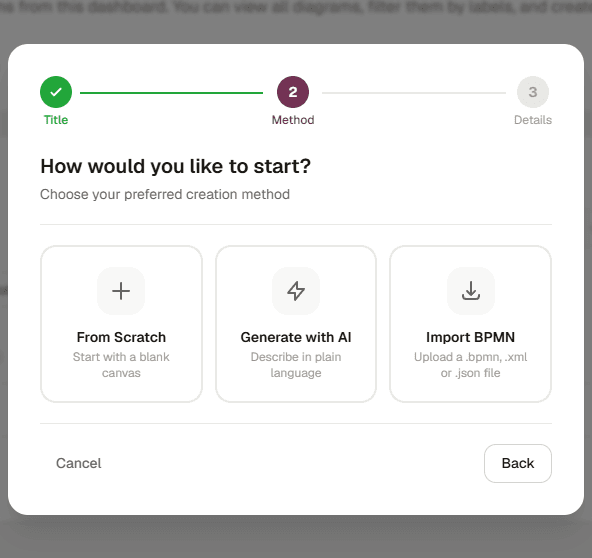
On the How would you like to start? screen, choose Generate with AI (Describe in plain language).
-
On the Describe your process screen, type the description of the process in Process Description. Be specific about the steps, who performs them, and the decision points.
Write the process as you would explain it to a colleague — for example: "An employee submits a leave request. Their manager reviews it. If approved, the request goes to HR for processing; if rejected, it returns to the employee for revision."
Descriptions must be written in English. Very complex processes may not generate accurately — generate a first draft, then refine it by hand.
-
Click Generate.
The diagram is created, the editor opens, and generation starts on its own. A progress overlay follows the generation phases; click Continue working to close it while the generation goes on in the background. See How generation runs.
If AI turns out to be unavailable for the installation, the diagram is still created, and the editor opens on the Welcome to your new diagram! dialog, with Generate with AI greyed out. Choose Start from scratch to keep the empty diagram, or Cancel and return to home, which deletes it, and contact your administrator.
You can also generate from inside the editor, with the Generate tab of the AI panel. See Generate a diagram from text.
Review and refine the result
When generation succeeds, the diagram appears on the canvas, automatically zoomed to fit. You now have a normal editable diagram.
Review it before you export it to Bonita Studio: a generated diagram is placed on the canvas as the AI produced it, without the element conversion that a file import applies. See Supported BPMN elements for the elements Bonita Studio accepts.
From here you can:
-
Edit it directly on the canvas — see Create your first diagram and Edit a diagram.
-
Ask the AI to modify the diagram with a follow-up instruction (for example, "Add a manager approval step after the first task"), or to analyze it, from the Modify and Analyze tabs of the AI panel. See Modify and analyze an existing diagram.
If generation fails
Try again: most failures are temporary. When the failure happened on the server or on the AI service, the message shows a Support ID with a Copy button: quote it when you contact your administrator or Ofelia Support (see The Support ID of an AI failure). If your group has used its quota, wait for usage to age out of the 30-day window or ask an administrator to raise the group quota.
For the full reference — progress, resuming after a reload, the provider picker, failures and quota — see AI diagram generation.