


Organize diagrams with labels
A quick recipe for creating labels, applying them to diagrams, and filtering the home page so your team finds the right process fast.
Labels are a shared, color-coded way to categorize diagrams (for example HR, Finance, or Customer Service). An Admin defines the set of labels, Creators apply them to diagrams, and anyone can filter the home page by label. This recipe walks through all three steps.
Labels complement folders: a diagram has one filing place, in a folder for example, but can carry several labels. To give your processes a place to live, see Organize existing processes into folders; to choose between the two, see Labels or folders?.
|
Labels are managed by Admins, but every user can see and filter by them. For the full reference, see Organize diagrams with labels in the user guide. |
Step 1 — Create labels (Admin)
Only an Admin can create or edit labels. If you are not an Admin, ask one to set up the labels your team needs (see Manage users for roles).
-
Sign in with an Admin account and open the admin panel.
-
Go to the Labels section.
-
Create a label, giving it a name (which must be unique) and an optional color. If you do not pick a color, a default is applied.
-
Repeat for each category your team uses.
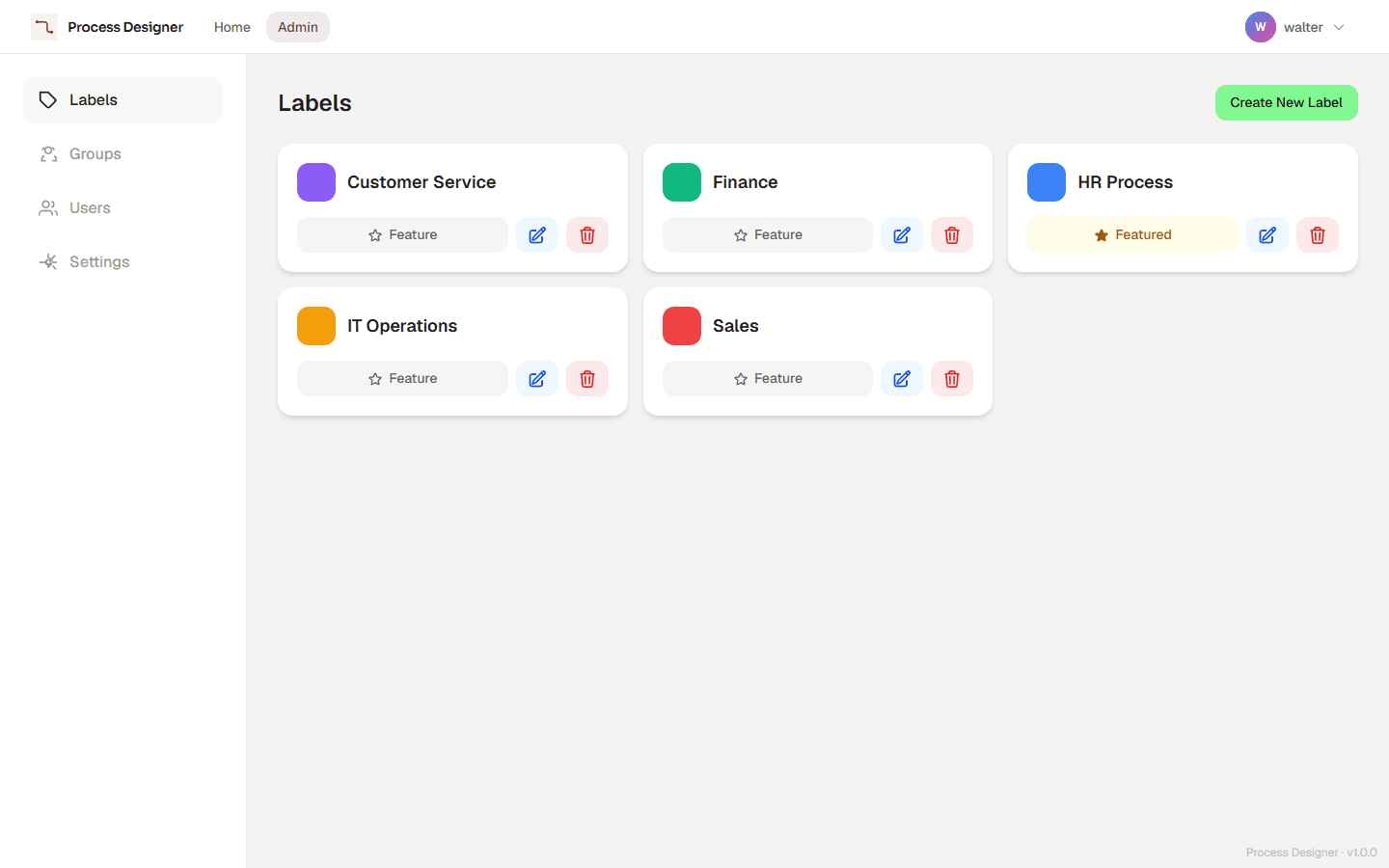
|
You can mark one label as featured. Its chip is placed right after All Diagrams on the home page, and it is the filter already selected when anyone opens the home page. Only one label can be featured at a time — setting a new featured label clears the previous one. |
Step 2 — Assign labels to a diagram (Creator or Admin)
Creators and Admins can attach labels to the diagrams they can edit. A single diagram can carry several labels.
-
On the home page, open the menu (the three dots) of a diagram card you have permission to edit, and select Edit labels. In the editor, use Edit Labels in the diagram information panel.
-
Select the checkbox of each label that applies.
-
Select Save. The diagram card now shows its labels, and the label filter uses them.
|
Readers cannot change a diagram’s labels — they can only view and filter by them. |
Step 3 — Filter the home page by label (anyone)
Any user can narrow the home page to a single label.
-
Open the home page.
-
Select a label chip. Only the diagrams carrying that label are shown (within the groups you can access), on every level and in the Tree view too.
-
Select All Diagrams to clear the filter.
If a featured label is set, the home page opens already filtered to it instead of showing everything.
Tips for a clean label scheme
-
Keep the label set small and meaningful — one per business domain or team works well.
-
Agree on names up front; because names are unique, you avoid near-duplicates like "HR" and "Human Resources".
-
Use the featured label for the category most users open first.
-
Use labels for cross-cutting themes (a domain, a status) and folders for where a process lives.
|
Deleting a label removes it from every diagram that used it; the diagrams themselves are untouched. If a label is still in use, Bonita Process Designer asks you to confirm before deleting. |
Related pages
-
Organize diagrams with labels — full label reference.
-
Manage users — roles that control who can create labels and assign them.
-
Organize processes in folders — the other way to organize processes.