


Download a diagnostic archive
Download, in one step, a ZIP archive that describes your Bonita Process Designer instance for the Support team — what it contains, what it never contains, and how to check it before you send it.
| Available from Bonita Process Designer 1.1.0. |
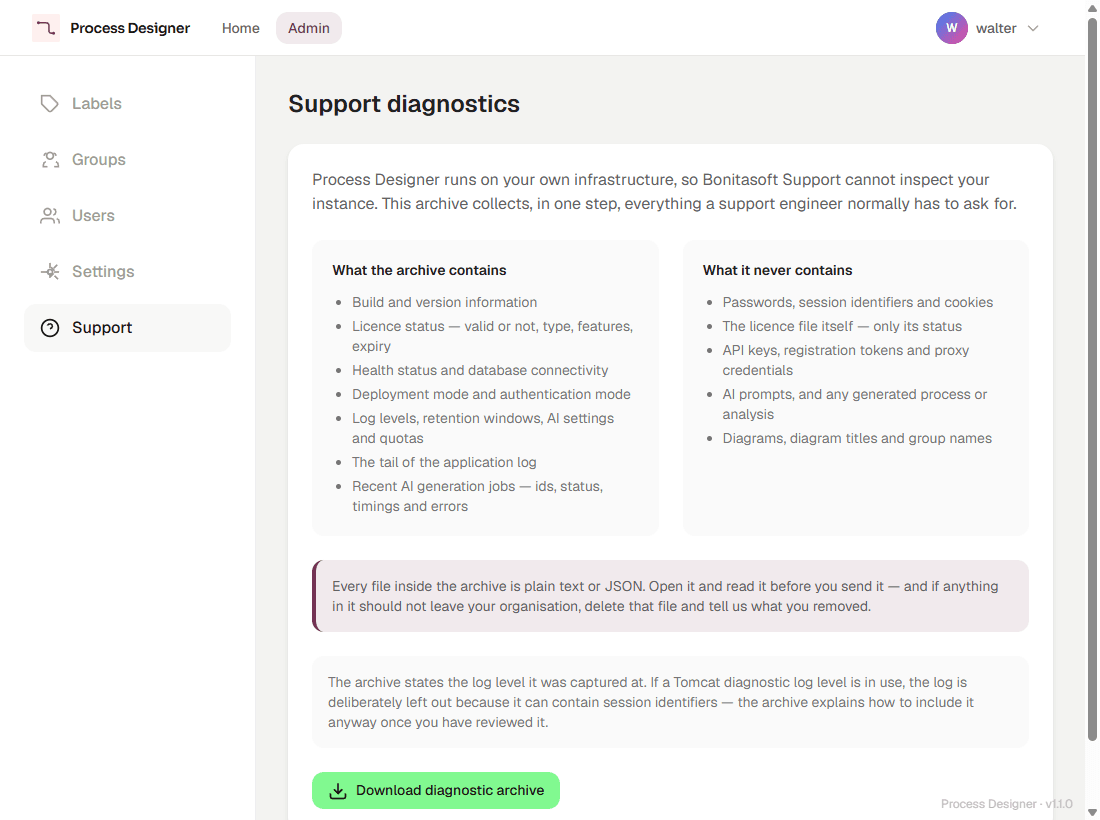
Bonita Process Designer runs on your own infrastructure, so the Support team cannot look at your instance. The diagnostic archive collects, in one download, the information a support engineer would otherwise ask for one item at a time: the version, the license status, the health of the application and its database, the deployment mode, a filtered view of the configuration, the end of the application log, and the recent AI generation jobs.
|
Only users with the Admin role can download the diagnostic archive. Creators and Readers have no access to the admin panel, and the server refuses the download for them. |
Download the archive
-
Open the Admin panel and select the Support tab.
-
Read the two lists on the page: What the archive contains and What it never contains.
-
Select Download diagnostic archive.
The button shows Preparing the archive… while the server builds the archive, then your browser saves a file named
process-designer-diagnostics-<date and time>.zip. The date and time in the name are in UTC.
If the archive cannot be built, an error message says "The diagnostic archive could not be generated. Please try again."
What the archive contains
The Support tab lists what goes into the archive:
-
Build and version information
-
Licence status — valid or not, type, features, expiry
-
Health status and database connectivity
-
Deployment mode and authentication mode
-
Log levels, retention windows, AI settings and quotas
-
The tail of the application log
-
Recent AI generation jobs — ids, status, timings and errors
Inside the ZIP, this information is spread over a few files:
| File | Content |
|---|---|
|
A summary written for a person: when the archive was captured and by which Admin, the version, the log level at capture time, the list of files, and what is deliberately left out. Open this file first. |
|
The version and build details, the license status, the health and database connectivity check, the deployment and authentication mode, the AI configuration flags (whether AI is enabled, which provider keys are configured, the preferred provider, whether the installation is registered), the AI quota of each group (group UUID, limit and number of members), the username of the Admin who captured it, and the configuration settings. The configuration comes from a fixed list of setting names, so a setting that is not on that list never appears. |
|
The 50 most recent AI generation jobs: their identifiers, kind, status, timings, AI provider and model, and error codes and messages. Each error message is cut at 300 characters. Some of them are written by the AI service: read them before you send the archive. |
|
The end of the application log, up to its last 2 MB. This file is missing when the log was left out — see When the log is left out. |
The archive identifies things by their identifiers, not by their names: diagrams, users and groups appear as UUIDs. It does hold a few names: the username of the Admin who downloaded it, the customer name and host name recorded in the license, and host names that are part of your configuration, such as the database host and the allowed origin. The log extract can also contain usernames.
What the archive never contains
The Support tab also lists what the archive never contains:
-
Passwords, session identifiers and cookies
-
The licence file itself — only its status
-
API keys, registration tokens and proxy credentials
-
AI prompts, and any generated process or analysis
-
Diagrams, diagram titles and group names
For proxy settings, the archive only says whether each one is set. The database connection is reduced to its host, port and database name.
Check the archive before you send it
Every file inside the archive is plain text or JSON, so you can open each one with a text editor. Read them before you send the archive.
If a file contains something that must not leave your organization, extract the ZIP, remove that file, compress the remaining files again, and tell Support which file you removed. A partial archive is still much more useful than none.
When the log is left out
Some log levels make the application log record content sent by the browser, such as a session cookie of a rejected request or the text typed in a search. A log captured at one of those levels is not safe to send as it is, so the archive leaves application.log out when, at the moment you download it:
-
either of the two Tomcat request loggers is at
INFO,DEBUGorTRACE— they are atWARNby default, andLOG_LEVEL_TOMCAT_HTTPsets them; or -
the application log level is
DEBUGorTRACE— for example after settingLOG_LEVEL=DEBUGto investigate a problem.
What counts is the level at the moment of the download, including a level changed on the running instance (see changing a level without a restart).
The archive is still produced. Its README.txt shows the log level of each of these loggers and explains why the log was left out. The Support tab mentions only the Tomcat case, but the same rule applies to the application log level.
To get a complete archive, set the log levels back to their defaults and download it again. The procedure to change a log level is in Logs and log levels.
|
If you need to send the log captured at the detailed level, you can include it anyway: as an Admin, open the address of the archive (see Download the archive when the license is not valid) followed by |
The log is also missing when the application writes no log file at all — for example when the log file was switched off with an empty LOGGING_FILE_NAME. README.txt then says so. In that case, collect the log as described in Collect the logs and send it with the archive.
Download the archive when the license is not valid
An invalid or expired license is one of the most common reasons to contact Support, so the archive does not depend on the license: the server builds it even while the license gate blocks the rest of the application.
The admin panel is not reachable in that state — every page sends you to the license page. To download the archive, sign in as an Admin, then open this address in the same browser:
<the address you use to open Process Designer>/support/diagnosticsFor example, https://process-designer.example.com/support/diagnostics. The browser saves the same ZIP file as the Download diagnostic archive button.
Send it to Support
Attach the archive to your request on the Customer Service Center, together with the other items listed in Get support:
-
the Support ID of the error, if there is one;
-
the Installation ID, shown in Application settings;
-
a short description of what happened, with the date, time and time zone.
The archive holds only the end of the log. If the problem happened some time ago, the part of the log that covers it may no longer be in the archive: also send the application log for that period, as described in Collect the logs.