


Manage groups
Create and manage groups in Bonita Process Designer to control which users can see and work on which diagrams and folders.
Groups are the data-isolation boundary in Bonita Process Designer. Every diagram can belong to a group, and a user only sees the diagrams in the groups they are a member of. Combined with the user’s role, group membership determines exactly what each person can view and change. Managing groups and their members is an Admin-only task.
For how roles and groups interact, see Roles and permissions.
What a group is
A group is a named container that scopes diagram access. It serves two purposes:
-
Visibility — a diagram that belongs to a group is visible only to that group’s members (and to any Admin).
-
Membership — users are added to one or more groups. A user’s groups determine the set of diagrams they can open, comment on, and — depending on their role — edit.
The folders of the home page belong to a group too, and hold only diagrams of that group. See Organize processes in folders.
Group membership is binary: a user is either a member of a group or not. There is no per-group role such as "owner". A user’s rights inside a group come from their global role (Reader, Creator, or Admin), not from the group itself.
|
Only Admins can create, edit, or delete groups and manage their members. Creators and Readers work within the groups they have been added to but cannot administer them. |
How diagrams are scoped to groups
Diagram access follows a simple rule:
-
Admin sees and can mutate every diagram, in any group or none.
-
For everyone else, a diagram that belongs to a group is visible and editable only to members of that group. A non-member cannot list, open, comment on, or edit it — the diagram simply does not appear on their home page, and trying to open it directly is refused.
-
When a non-Admin user creates a diagram, they must place it in a group they belong to. A user who belongs to no group therefore cannot create a group-scoped diagram; ask an Admin to add you to a group first.
This boundary applies to the whole diagram, including its comments and version history — not just the canvas.
Folders
Folders follow the same boundary:
-
A folder belongs to one group and is visible only to the members of that group, and to Admins. A non-Admin who creates a folder at the top level must choose one of their groups; a folder created inside another folder takes that folder’s group.
-
A folder holds only diagrams and folders of its own group: moving a diagram or a folder into a folder of another group is refused, for Admins too.
-
A folder with no group is visible to, and managed by, Admins only. Only an Admin can create one.
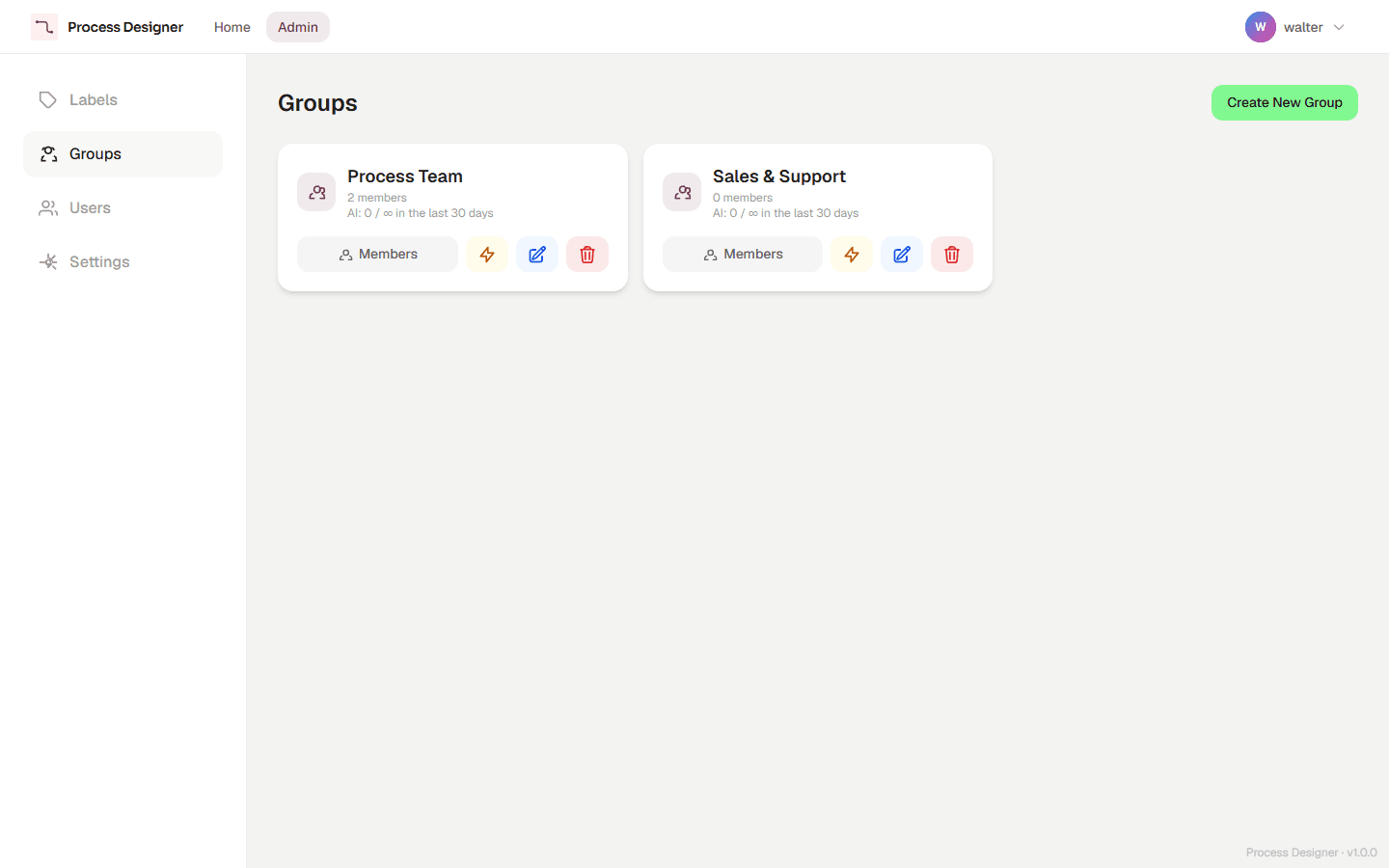
Create a group
-
Open the admin panel and go to the Groups section.
-
Select Create New Group.
-
Enter a unique Group Name.
-
Select Create. The group is created with no members yet.
Add and remove members
A group is only useful once it has members. Select Members on the group’s card:
-
Add a member — select a user and add them to the group. They immediately gain access to that group’s diagrams (subject to their role).
-
Remove a member — remove a user from the group. They lose access to that group’s diagrams; any diagram or folder they could only see through this group disappears from their home page.
A single user can belong to several groups at once; they see the combined set of diagrams from all of them.
|
Removing a user from a group revokes their access to that group’s diagrams right away. If the user was the only Creator working on a group’s diagrams, make sure another member can still maintain them. |
Edit or delete a group
-
Edit — rename a group from its card. Membership, the diagrams and the folders of the group are unaffected.
-
Delete — remove a group entirely. The confirmation dialog shows how many members and diagrams the group has, and warns: "Members will be removed and the group’s diagrams will become ungrouped. This cannot be undone." Plan this carefully and review the group’s diagrams before deleting.
When a group is deleted:
-
its members lose the access they had through it;
-
its diagrams lose their group: each one is then accessible only to its creator and to Admins;
-
its folders lose their group too, so they become visible to, and managed by, Admins only. Diagrams stay filed where they were;
-
as a consequence, the creator of a diagram filed in one of those folders no longer sees the folder (unless they are an Admin). The List view does not show that diagram at any level; the Tree view shows it at Home, and search finds it, with a "Level not accessible" segment in its filing path;
-
if one of its top-level folders has the same name as an existing top-level folder without a group, it is renamed
Name (2)(orName (3), and so on).
|
Deleting a group is not the same as deleting its members or their diagrams, but it does remove the access boundary those diagrams relied on. Verify the impact on visibility before you delete. |
Related topics
-
Roles and permissions — how Reader, Creator, and Admin rights combine with group membership.
-
Manage users — create users and assign their global role before adding them to groups.
-
Organize processes in folders — how folders are created and used on the home page.