


FAQ
Answers to common questions about Bonita Process Designer — what it is, who can use it, folders and labels, AI generation, collaboration, Bonita Studio export, lost changes — and what to check before you contact Support.
Generic information
What is Bonita Process Designer?
Bonita Process Designer is a web-based BPMN 2.0 diagram editor. You create, edit and manage business-process diagrams on a drag-and-drop canvas, organize them in folders, generate diagrams from a plain-language description with AI, collaborate with your team in real time, and export your work for use in Bonita Studio.
It is built for enterprise use: access is controlled by role and scoped to groups, several people can edit the same diagram at once, and an administrator manages users, groups, licensing and AI usage. For a full tour, see the overview and the Getting started guide.
Who can use it, and what can each role do?
Every user has one of three global roles, and what they can do is further limited to the groups they belong to:
-
Reader — view diagrams, folders and comments in their groups, open called processes, export, run a simulation, and post comments. A Reader cannot create, edit, move or delete diagrams or folders.
-
Creator — everything a Reader can do, plus create diagrams and folders in their groups, and edit, move or delete any diagram or folder in those groups. A Creator can also use AI generation.
-
Admin — full access across every group, and exclusive rights to manage users, groups, labels, application settings, the license and AI quota, and to download the diagnostic archive for Support.
For the complete rights matrix, see Roles and permissions.
Do I need Bonita Studio to use it?
No. Bonita Process Designer is a standalone web application — you only need a running instance and an account to design diagrams. Bonita Studio comes into play when you want to take a diagram further: you can export your diagram to a BPMN 2.0 file and import it into Bonita Studio to continue building an executable process.
Access and data
Is my data isolated per group?
Yes. Groups are the data-isolation boundary. A user only sees and works with the diagrams and folders of the groups they belong to — those of other groups are invisible to them. The only exception is the Admin role, which sees and can act on every diagram and folder regardless of group.
This boundary applies to all diagram-scoped actions (view, edit, move, delete, comment, AI generation), so a user can never reach a diagram — or the AI usage of a group — that they are not a member of. See Manage groups.
Organize processes
Should I use labels or folders?
Both, for different needs. A folder gives a process its place: each process is filed in exactly one place, at Home, in a folder, or under another process, and a folder belongs to one group. A label is a cross-cutting tag from one catalog shared by all groups, and a diagram can carry several. Use folders to browse processes level by level, and labels to filter, by a theme or a status, the level you are on, the Tree view or the search results.
Can two diagrams have the same title?
Yes. Titles do not have to be unique: you can have a Validation process in the Finance folder and another one in the HR folder. The filing path shown on the cards and in the search results tells them apart. Folder names, on the other hand, must be unique within their level, and at Home within their group: see Folder names are unique within a level.
Duplicate titles matter in two places:
-
The list of the Called process section of a Call Activity shows titles only, so two processes with the same title look identical there. Rename one of them before you choose.
-
Bonita Studio finds a called process by its name, so two processes with the same name are taken for one after an export. Bonita Process Designer warns you about some of these cases, but not all.
A diagram is missing from the home page. Where is it?
Check, in this order:
-
It is filed under another diagram. Such a diagram is not shown as a card. Switch to the Tree view, or search for its title: the result shows its filing path.
-
A filter is active: a label chip other than All Diagrams, Group:, or My processes. If an Admin has featured a label, its chip is selected when the page opens. The label chips and My processes apply to the level you are on.
-
It is in another folder. Search for its title, whatever the level you are on.
-
You lost access to it. If you were removed from its group, you no longer see it. If its group was deleted, it is visible only to its creator and to Admins.
See Troubleshooting in the folders guide.
Features
How does AI diagram generation work, and is there a quota?
You can generate a diagram from a text description, and you can ask the AI to modify or analyze an existing diagram. Each request runs as a background job: a progress display shows its phases, you can keep working meanwhile, and if you reload the page, the job is picked up again when you come back in the same browser. A generated diagram is placed on the canvas and saved automatically: review it before you export it. Where more than one AI provider is configured, you can pick one for a single request.
AI generation must be enabled by an administrator (the installation has to be registered and an AI provider configured) before the feature is available.
Each group can have an AI generation quota over a rolling 30-day window. Generate and Modify count against the quota; Analyze does not, and a request that fails is not counted. When a group reaches its limit, further requests are refused with a clear message until earlier usage ages out of the window. A group with no limit set is unlimited. Administrators set and monitor quotas — see Manage AI quota and the user-facing AI diagram generation guide.
Can multiple people edit a diagram at the same time?
Yes. Bonita Process Designer supports real-time collaboration: several users can open and edit the same diagram simultaneously.
-
Changes go through the server and are broadcast to everyone live, and you see the presence and cursors of the other participants.
-
When two people change the same element at nearly the same moment, the last change wins.
-
An advisory lock indicator shows when someone is working on an element.
-
While someone’s AI request changes the diagram, the others are paused until it finishes.
Can one process call another?
Yes. A Call Activity can call another process of Bonita Process Designer: Creators and Admins choose the called process in the inspector, and everyone who can open the diagram, Readers included, can open the called process in a document tab. Calling a process does not file it anywhere, and filing a process under another one does not create a Call Activity. See Call other processes.
Can I export a diagram to Bonita Studio?
Yes. BPMN exports the diagram as a BPMN 2.0 file that Bonita Studio can import. BPMN+ exports the process together with every process filed under it, as one file. You can also export to PNG or JSON, or print. Because the editor only offers the BPMN elements Bonita Studio supports, an exported diagram imports cleanly.
|
Marketplace connector and actor-filter bindings attached to tasks are written into the exported |
Which BPMN elements are supported?
The editor exposes a curated subset of BPMN 2.0 chosen for compatibility with Bonita Studio import:
-
tasks, including user, service, script, send and receive tasks, and the Call Activity;
-
the exclusive, inclusive and parallel gateways;
-
a range of start, end, intermediate and boundary events;
-
sequence, default and conditional flows;
-
horizontal pools and swimlanes, and annotations.
BPMN sub-processes are not offered: to split a process into parts, call another process from a Call Activity.
When you import a BPMN or JSON file, an element outside this set is:
-
converted to the closest supported element;
-
removed, when there is no equivalent;
-
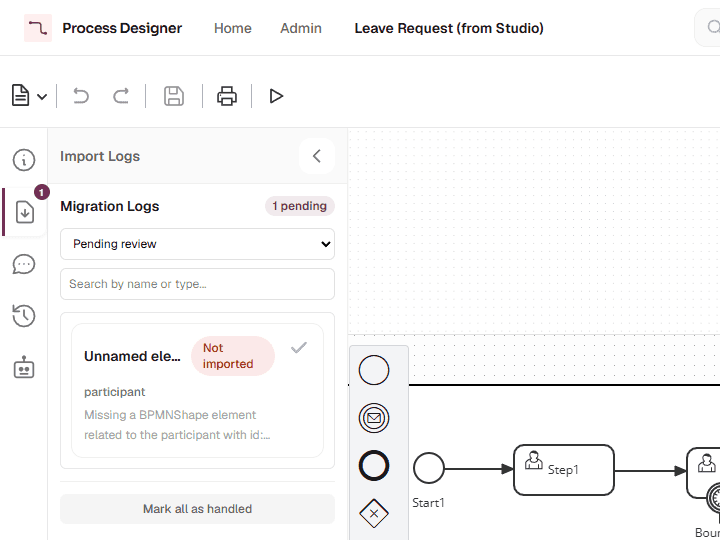
left out, when the editor cannot receive it, such as the actor participant that recent versions of Bonita Studio add to new diagrams. The rest of the file is imported.
The Import Logs tab lists these elements, with a few exceptions, so that you can review each one. A diagram generated by AI does not go through this conversion. For the full list of supported and converted elements, see Supported BPMN elements.
When something goes wrong
I lost my changes. Can I get them back?
Sometimes. If the browser tab where the changes were made is still open, first export the diagram as JSON, before you reload it. Then find out what happened:
-
Did anyone else have the diagram open at the time?
-
Did the computer go to sleep, or did the network drop?
-
Was an AI Generate or Modify request run on the diagram?
-
Did the editor show a message starting with Live collaboration stopped?
The answers tell you which version of the Versions tab may hold the changes, and when none does: see When someone reports lost changes.
The "AI is editing this diagram" banner does not go away. What can I do?
While someone’s AI Generate or Modify request runs on a diagram, the other participants see AI is editing this diagram for <name> — editing is paused until it finishes. and cannot change the diagram. Nobody can cancel a running request. The banner names the person who started it: ask them first. If the banner is still there after about ten minutes, reload the page.
For when the lock lifts, see While AI is editing the diagram.
Bonita Studio does not find a called process. Why?
Bonita Studio finds a called process by its name. Check these points:
-
The called process is in Bonita Studio. With BPMN, the file holds each called process by its name only, as an empty process: export the called process too, and import both files into Bonita Studio. With BPMN+, only the processes filed under the exported one are in the file with their content.
-
The exported diagram itself calls a process. In a BPMN+ file, a called process that is not filed under the exported one is added, by its name only, when the exported diagram itself contains a Call Activity that calls a process. When only the processes filed under it make such a call, the call is not resolved in Bonita Studio, and no message tells you so.
-
Names are unique. Two processes with the same name are taken for one. Give called processes distinct titles, and the Pools of the processes you export together distinct names.
-
The export completed. If the export showed "Child process names were not available", export again in a moment.
See Called processes in Bonita Studio, Export a process and the processes filed under it (BPMN+) and Called processes in the Bonita Studio how-to.
Troubleshooting for Support
If your question is not answered here, start with the Getting started guide and the User guide. For lost changes, the AI editing banner and called processes in Bonita Studio, see the questions above: I lost my changes. Can I get them back?, The "AI is editing this diagram" banner does not go away. What can I do? and Bonita Studio does not find a called process. Why?.
When you need to report a problem, or an administrator investigates one, these pages tell you what to look at and what to send:
- An error message shows a Support ID
-
Select Copy next to it, and quote the ID in your request: it points to the exact failure in the log. See The Support ID, and for AI requests The Support ID of an AI failure.
- Support needs a picture of the instance
-
An Admin downloads the diagnostic archive from the Support tab of the admin panel: see Download a diagnostic archive. While the license is not valid, the admin panel does not open: the Admin then opens the address of the archive,
/support/diagnostics, in the browser, as described in Download the archive when the license is not valid. Copy the Installation ID separately: see Installation ID. - Support needs the logs
-
See Collect the logs, and Logs and log levels to raise a log level or follow one request. While a detailed log level is on, the diagnostic archive leaves the log out: see When the log is left out.
- The application does not start, or cannot be reached
-
First question: was it just installed or upgraded? The first start runs the database migrations, which can take longer than the health check: with Docker,
docker compose up -dthen reportsdependency failed to start: container bpmn-app is unhealthy. See the troubleshooting sections of Install with Docker and Standalone installation. After an upgrade from 1.0.x, see also Upgrade Process Designer. - Every user is sent to the license page
-
No valid license is installed. First question: was the instance just upgraded from 1.0.x, and from which version? With Docker, an upgrade from 1.0.0 needs the license file installed again, because 1.0.0 kept it inside its container: see Start 1.1. With the standalone distribution, from any 1.0.x, the
licenses/folder must be copied into the new folder: see Prepare, while 1.0 still runs. Otherwise, see Manage the license. The diagnostic archive can still be downloaded: see Download the archive when the license is not valid. - AI is not available
-
First question: is the user a Creator or an Admin? Readers cannot use AI. Then: is the installation registered, and has an Admin configured an AI provider? See Prerequisites in the AI guide. When a request fails, quote its Support ID.
- An access error when opening a link, or a diagram that disappeared
-
First question: is the user a member of the diagram’s group? See Group scoping and data isolation, and A diagram is missing from the home page. Where is it? above.
For the full checklist of what to send, and how to open a request on the Customer Service Center, see Get support.