


Call other processes
Point a Call Activity at another process, open the called process in a document tab, and keep references consistent when you delete a process or export to Bonita Studio.
| Called processes and document tabs are available from Bonita Process Designer 1.1. |
A Call Activity is an activity that runs another process. In Bonita Process Designer, you point a Call Activity at another diagram of the application: the called process. You can then open the called process straight from the Call Activity, and the reference is kept when you export the diagram to Bonita Studio.
|
Calling a process is not filing it. Every process sits in exactly one place: at Home (the top level), in a folder, or under another process. That place is its filing path (see Organize processes in folders). A Call Activity does not move or file anything, and filing a process under another one does not create a Call Activity. The Tree view on the Home page shows how processes are filed, not which processes call which. |
Who can do what
| Action | Reader | Creator | Admin |
|---|---|---|---|
Open a called process from the canvas |
Yes |
Yes |
Yes |
Set, change or clear the called process of a Call Activity |
No |
Yes |
Yes |
Creators work on the diagrams of their own groups; Admins on every diagram. See Roles and permissions.
Set the called process
-
Open the calling diagram in the editor.
-
Add a task from the palette, or select an existing activity.
-
In the inspector on the right, open the Content tab and, under Available shapes, click Call Activity.
The element is replaced by a Call Activity.
-
Click the Call Activity on the canvas.
The Called process section appears in the inspector, with the name of the activity.
-
Optionally, type in Filter processes… to narrow the list by title.
-
Select the process to call in the list.
The call is set as soon as you select it, and a notification confirms it: This activity now calls "<process>".
The list offers every other process you have access to. The diagram you are editing is not listed. When there is nothing to offer, the section shows No other process is available.
The list shows titles only, and two processes can have the same title: they then look identical in the list. Rename one of them first, so that you pick the right one.
The called process is part of the diagram, like the position of a shape: it is saved with the diagram, it appears live for the people editing with you, and Ctrl+Z undoes it.
To remove the call, select the Call Activity and click Clear in the Called process section (Called process cleared.). To call a different process, select another one in the list. Open and Clear are shown only when the activity calls a process.
Processes that would create a loop
A process must never end up calling itself, directly or through other processes. A process that already leads back to the one you are editing is still listed, but it is greyed out and cannot be selected. It reads <process> — already leads back here, and a hint under the list explains:
Greyed-out processes already lead back to this one; calling them would create a loop.
The check is also made on the server, when the change arrives. If someone else closed the loop a moment before you, your change is refused with That process already leads back to this one, so the call was not applied. A diagram whose calls lead back to itself cannot be saved either: the editor shows Not saved: a process call in this diagram leads back to the diagram itself. Clear or retarget that call, then save again.
Open a called process
A Call Activity that calls a process shows a small round button with a downward arrow on the canvas. Click it to open the called process. Hovering over it shows Open the process called by "<activity>", or Open the called process when the activity has no label. The button is available to everyone who can open the diagram, Readers included.
Creators and Admins can also click Open in the Called process section of the inspector.
Before opening, Bonita Process Designer checks that the called process can still be reached. If it cannot, you stay where you are and a message tells you why:
-
The called process no longer exists. It may have been deleted.
-
You do not have access to the called process.
-
The called process could not be opened. Check your connection and try again.
Work with document tabs
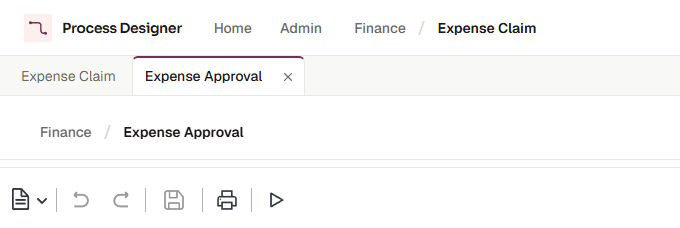
A called process opens in a document tab inside the application, not in a new browser tab. As soon as a second process is open, a tab strip appears above the editor.
-
The first tab is the process you started from. It has no close button.
-
Click a tab to switch to it. A tab you leave keeps its state: zoom, scroll position, selection, undo history and unsaved changes are all still there when you come back.
-
Opening a process that is already open switches to its tab instead of opening a second one.
-
Opening a called process from inside a tab adds a tab to the same strip.
-
A dot on a tab means that its process has unsaved changes.
-
With the keyboard, use the arrow keys, Home and End to move between tabs, and Delete or Backspace to close the focused tab (except the first one).
You can have up to eight processes open at once, the first one included. At the limit, opening another one is refused with You can have 8 diagrams open at once. Close a tab to open another one.
To close a tab, click its ×. If the tab has unsaved changes, the Close this tab? dialog asks what to do:
-
Save & Close saves the tab, then closes it. If the save fails, the tab stays open with its changes.
-
Close Without Saving closes the tab without saving it. When real-time collaboration is connected, which is the normal case, your edits already reached the server as you made them, so they are kept anyway. To drop changes, undo them before you close the tab.
-
Cancel keeps the tab open.
Leaving the editor, for example with Home, checks every open tab: if any of them has unsaved changes, the leave confirmation opens, and Save & Exit saves all of them before leaving. The Admin link of the header, a search from the header and signing out do not check: see Leaving with unsaved changes.
Open tabs are not kept when you reload the page: the page reopens only the process shown in the address bar.
The process path in the editor header
The editor header shows the filing path of the open process: the folders and the processes it is filed under, from the top level down to the process itself. In a document tab, each tab shows the path of its own process under the tab strip.
-
A process in the path can be clicked to open it. From a document tab, it opens in a tab. From the first tab, it replaces the page and closes the other tabs; if this diagram or any open tab has unsaved changes, the Leave this diagram? confirmation first offers Save & Continue, Continue Without Saving and Cancel.
-
A folder in the path is plain text.
-
A level you do not have access to is shown as Process not accessible.
The path tells you where the process is filed. It does not show the chain of Call Activities you followed to open it.
Delete a process that other processes call
When you delete a process that other processes call, the delete confirmation lists them before you confirm: 1 process calls this diagram and will be left with a broken call: (or N processes call this diagram…), followed by their names. Callers you do not have access to are counted but not named: Including N processes you do not have access to.
Deleting is still allowed. Afterwards, the Call Activities that called the deleted process still point at it: opening them shows The called process no longer exists. It may have been deleted., and the Called process section shows Process not accessible. Select another process or click Clear.
Called processes in Bonita Studio
When you export to BPMN, each Call Activity keeps its call: Bonita Studio finds the called process by its name. With BPMN, the file holds each called process by its name only, as an empty process: export the called process too, and import both into Bonita Studio. BPMN+ also includes the full content of the processes filed under this one. Give the processes you call distinct titles. Bonita Process Designer warns you about some duplicate names, but not all. See Export for Bonita Studio (BPMN), BPMN+ and Processes with the same name.