


Export and import diagrams
Export a Bonita Process Designer diagram as PNG, JSON, BPMN, or BPMN+ (a process and the processes filed under it), print it, and import BPMN or JSON files, with a report of every element that was converted or could not be imported.
Bonita Process Designer lets you take diagrams out of the editor in several formats, and bring existing models back in. Export to BPMN when you want to continue the work in Bonita Studio, or to BPMN+ to send a process together with the processes filed under it in one file. Export to PNG, or print, when you need a picture for documentation or sharing. Export to JSON to save the raw diagram and re-import it into Bonita Process Designer later.
A process is filed in a folder or under another process of its group; the folders and processes above it are its filing path, shown on its card. The top level is called Home. See Organize processes in folders.
Who can export and import
| Action | Admin | Creator | Reader |
|---|---|---|---|
Export (PNG, JSON, BPMN, BPMN+) and print |
Yes |
Yes |
Yes |
Import a file into the open diagram |
Yes |
Yes |
No |
Create a diagram from a file (Import BPMN in the creation wizard) |
Yes |
Yes |
No |
Change the status of import-log entries |
Yes |
Yes |
No |
A Reader opens diagrams in read-only mode: the export buttons and Print stay available, but the Open file button is hidden. The Import Logs tab is not shown to Readers.
Export formats
Open a diagram in the editor. The export buttons are on the right of the toolbar, after the Export as: label: PNG, JSON, BPMN, and BPMN+. Print is the printer button on the left of the toolbar.
| Button | What you get |
|---|---|
PNG |
A picture of the whole diagram. Bonita Process Designer first shows the image in a Download PNG preview window; download it from there. There is no background or transparency option. |
JSON |
The raw diagram, downloaded as a |
BPMN |
The diagram as a BPMN 2.0 file ( |
BPMN+ |
One |
Opens your browser’s print dialog. The diagram is scaled to fit the page. |
The downloaded file is named after the diagram title: at most 50 characters, in lower case, with spaces replaced by dashes, and accented and special characters removed.
Exported images and prints show the diagram on its grid. The selection outline around selected elements, and the highlight that a simulation leaves on visited elements, are not included, even when you export while elements are selected or a simulation is running.
Export for Bonita Studio (BPMN)
The BPMN button writes the diagram as a standard BPMN 2.0 file that Bonita Studio can import. For the procedure, see Export a diagram to Bonita Studio.
Besides the diagram itself, the file carries:
-
Pool names. Each Pool’s name is written on the process it contains, so the Pool arrives in Bonita Studio under its own name rather than an identifier. Give your Pools meaningful names.
-
Called processes. A Call Activity that calls another diagram is exported so that Bonita Studio can resolve it. Studio resolves a called process by name, so the file also contains one empty, named process for each diagram the exported one calls. The content of a called process is not in the file: export it separately, or use BPMN+ if it is filed under the exported process.
-
Filing. Where the diagram is filed, so that it can be filed again when you create a diagram from the file. See What the file records about filing.
-
Marketplace connectors. If your diagram uses marketplace connectors, the bindings are written into the file as Bonita extension elements, so they travel with the file and survive a round trip back into Bonita Process Designer. Bonita Studio currently ignores these bindings on import, so you reconfigure connectors and actor filters there.
Processes with the same name
Bonita Studio matches processes by name, and titles do not have to be unique in Bonita Process Designer. So check names before you export:
-
Called processes present only by name. Bonita Process Designer warns you when two of the called processes that the file holds only by their name have the same title, or when one of them has the same name as a Pool of the exported diagram. The file is still downloaded. Rename one of the processes and export again. See Export messages for the message.
-
Processes included with BPMN+. Bonita Studio matches the processes included in a BPMN+ file by their Pool name. No warning is shown when two of these Pools have the same name, so give every Pool a unique name. A new Pool is named
Pooluntil you rename it.
Export a process and the processes filed under it (BPMN+)
BPMN+ exports the open process together with every process filed under it — the processes below it in the Tree view of the home page, at every level — as one .bpmn file. The messages call this set a subtree. Bonita Studio receives the whole set in a single import, and the Call Activities between these processes point at processes that are in the file.
BPMN+ follows the filing, not the calls:
-
A process filed under the exported one is in the file, whether or not a Call Activity calls it.
-
A process that a Call Activity calls, but that is not filed under the exported one, is not in the file with its content. It is added as an empty, named process, so that Bonita Studio can resolve the call, only when the open diagram itself contains a Call Activity that calls a process. When only processes filed under it call such a process, the call is not resolved in Bonita Studio, and no message tells you so.
-
A branch of the tree that cannot be listed, for example because you no longer have access to it, may be left out without a message, and the file is then incomplete. Check the number of processes in the success message, for example "Exported this diagram and 3 filed under it, as one BPMN file".
The open process is exported as it is on your screen, including changes you have not saved yet. The processes filed under it are exported as they were last saved.
Limits and refusals
A BPMN+ export is all or nothing. Bonita Studio rejects the whole import when a single element in the file cannot be loaded, without saying which one, and the more processes a file holds, the more likely that is. So before it writes anything, Bonita Process Designer checks the export. It refuses it, and downloads nothing, in the following cases:
-
Too large. A BPMN+ file holds at most 20 processes filed under the exported one (
countin the message), down to at most 5 levels below it (depth). The message gives the actual value and the limit, for example "count: 24 > 20" or "depth: 7 > 5". -
An element Bonita Studio cannot receive in one of the processes filed under the exported one. The message names the first element found and the process that contains it.
-
A process that cannot be prepared for export. The message names it.
-
The content of a process filed under this one cannot be loaded ("The process tree is not available on this page").
In each of these cases, a message is shown for a few seconds at the top of the screen; see Export messages for the exact texts.
The list may not be exhaustive. In particular, when processes are filed under it, the open diagram must contain at least one Pool: otherwise nothing is downloaded, and no message is shown.
After a refusal, you can still click BPMN to export the open diagram alone. To export a large tree, export smaller branches: open a process lower in the tree and use BPMN+ from there.
Export messages
These messages come from the editor and carry no Support ID.
| Message | Downloaded? | What to do |
|---|---|---|
More than one process in the exported file is named "Approve request". After importing into Bonita Studio, every Call Activity pointing at that name will resolve to the same process — rename them to keep them distinct. |
Yes |
Rename one of the processes, then export again. See Processes with the same name. |
2 names are each used by more than one process in the exported file (Approve request, Check stock). After importing into Bonita Studio, the Call Activities sharing a name will all point at the same process — rename them to keep them distinct. |
Yes |
Rename the processes that share a name, then export again. |
Child process names were not available — export again in a moment so Bonita Studio can resolve the called processes |
Yes, without the names of some called processes |
Export again in a moment. If the message persists, check that every called process still exists and that you can open it. |
Exported this diagram and 3 filed under it, as one BPMN file |
Yes (BPMN+) |
Check that the number matches the processes filed under this one. |
Extension bindings are still syncing — try the BPMN export again in a moment |
No |
Try again a few seconds later. |
Extension bindings could not be loaded — reload the page before exporting to BPMN |
No |
Reload the page, then export again. |
The diagram could not be rendered as an image — see the browser console for details |
No (PNG) |
Try again; for a very large diagram, use Print or another format. |
The process tree is not available on this page — only this diagram can be exported |
No (BPMN+) |
Check your connection, reload the editor and try again, or use BPMN. |
This subtree is too large to export as one file (count: 24 > 20, or depth: 7 > 5). Export this diagram alone, or export a smaller subtree. |
No (BPMN+) |
Use BPMN, or BPMN+ from a process lower in the tree. |
2 element(s) cannot be received by Bonita Studio — the first is “Check stock” in “Order handling”. The whole import would fail. Export this diagram alone, or remove them first. |
No (BPMN+) |
Replace the element in the named process, or use BPMN. |
“Order handling” could not be prepared for export (…) — nothing was written. Export this diagram alone instead. |
No (BPMN+) |
Open the named process and check it, or use BPMN. |
This subtree could not be exported as one file — export this diagram alone instead |
No (BPMN+) |
Use BPMN. |
(no message, nothing downloaded) |
No (BPMN+) |
The open diagram has no Pool: add one, or use BPMN. |
What the file records about filing
A diagram exported with BPMN or BPMN+ records where it is filed: the identifier of the folder or of the process it is filed under, and its filing path, written for people to read (for example Finance / Invoicing). The path is also written as a plain-text Filed under: … note on the process, which other BPMN tools can display. A diagram at Home records nothing, and a JSON export records no filing.
Bonita Process Designer only uses this information when you create a diagram from the file with Import BPMN in the creation wizard (see Create a diagram from a file), and it only works within the same installation:
-
Bonita Process Designer looks for the recorded folder or parent process by its identifier, never by its name. If it exists in this installation and the diagram can be filed there, the new diagram is filed in the same place, and a message confirms it, for example: "Diagram filed under Finance / Invoicing, as recorded in the imported file." The place recorded in the file replaces the Folder you chose in the wizard.
-
If it does not exist — the file comes from another installation, or the folder or process was deleted — or the diagram cannot be filed there, the diagram stays where the wizard created it. The message then says that the recorded place is not available, and that "The diagram stays at Home": if you chose a folder in the wizard, the diagram is in fact in that folder.
-
If Bonita Process Designer could not ask the server, for example because the connection dropped, the message is "The diagram was imported, but its filing could not be restored. Check your connection and move it manually if needed."
Importing a file into a diagram that is already open never moves that diagram: importing content is not an instruction to refile it.
Import a file
You can bring a BPMN 2.0 file (.bpmn or .xml), or a JSON diagram previously exported from Bonita Process Designer, into the editor in two ways: as a new diagram, or into the diagram you have open.
Create a diagram from a file
Use this to import a file as a new diagram, without touching any existing one.
-
On the home page, click Create New Diagram.
-
Enter the Diagram Title, and choose the Group and, if offered, the Folder. Click Next.
If the file was exported from this installation, the diagram is filed where the file records, if that place still exists and the diagram can be filed there. This replaces the folder you choose here. See What the file records about filing. -
At How would you like to start?, click Import BPMN.
-
Click Choose a file and select a
.bpmn,.xml, or.jsonfile of at most 4 MB. -
Click Import.
Bonita Process Designer creates the diagram, opens it in the editor, and draws the content of the file on the canvas.
If nothing in the file can be imported, the message is "Could not import the file. Check that it is a valid .bpmn, .xml or .json file." The new diagram is created anyway, and stays empty: delete it, or import another file into it.
Import into the open diagram
Use this to replace the content of the diagram you are editing.
-
In the editor toolbar, click Open file (the first button on the left).
-
Choose BPMN to pick a
.bpmnor.xmlfile, or JSON to pick a.jsonfile.
You can also drag a .bpmn, .xml, or .json file from your computer and drop it onto the canvas. In that case Bonita Process Designer asks you to confirm first, because the import replaces the current diagram.
| Importing into the open diagram replaces its whole content, and you cannot undo it. With Open file, you are not asked to confirm, unless some elements of the file cannot be imported. To keep the current content, save the diagram and take a Snapshot in the Versions tab first, or create a new diagram from the file instead. |
If nothing in a BPMN file can be imported, the file is refused and the canvas stays unchanged. With Open file or drag and drop, no message is shown.
|
A BPMN+ file is meant for Bonita Studio. Bonita Process Designer does not split it back into separate processes: importing it gives one diagram, with the Pools of all the processes on its canvas. |
What happens to unsupported elements
Imported files often contain BPMN elements that Bonita Process Designer and Bonita Studio do not support. Rather than reject the file, Bonita Process Designer handles them automatically, and lists every element it converts, removes or skips in the Import Logs tab (with the exceptions in Not reported in Import Logs):
-
Converted — the element is replaced by the closest supported element: for example, a Manual task becomes a Task, and a Complex gateway becomes an Exclusive gateway. When you import a BPMN file, an activity that carried a compensation marker is also reported as Converted: the activity is imported, without the marker. A JSON file keeps the marker.
-
Removed — the element has no supported equivalent and is dropped: for example, a Data object or a Message flow. A flow connected to a removed element is removed with it.
-
Not imported — the editor could not build the element from a BPMN file at all. The most common case is the actor participant that Bonita Studio adds to every new diagram: it has no shape in the file, so it is skipped.
The full conversion table is in Supported BPMN elements.
Not reported in Import Logs
A few things are lost on import without an entry in the Import Logs tab:
-
A Call Activity whose file names its called process in a way Bonita Process Designer does not recognize (a process name, or a Bonita Studio identifier) is imported without its called process. Only calls exported by Bonita Process Designer are kept.
-
Loop and multi-instance markers are not restored from a BPMN file, even one exported by Bonita Process Designer; a JSON file keeps them.
-
Connectors and other extensions defined by other tools are not imported. Only the marketplace connector bindings written by Bonita Process Designer are read back.
Partial import
A BPMN file with elements the editor cannot build is still imported: everything else is drawn, and the skipped elements are reported as Not imported. After the import, a message summarizes what happened, for example "1 element not imported. Check Import Logs for details."
If you import such a file into a diagram that already has content, Bonita Process Designer first asks you to confirm in an Incomplete import dialog: "1 element of this file could not be imported. Importing the rest will replace the diagram currently open, and cannot be undone." Click Import anyway to continue, or Cancel to leave your diagram unchanged.
The Import Logs tab lists at most 200 elements that could not be imported. Beyond that, one last entry gives the number of the others, for example "12 further elements could not be imported and are not listed individually."
The Import Logs tab
Every import that converts, removes or skips something is recorded, and the editor opens the Import Logs tab in the left sidebar. The tab’s icon shows how many entries are still pending, and the panel lists the entries under Migration Logs, one per affected element.
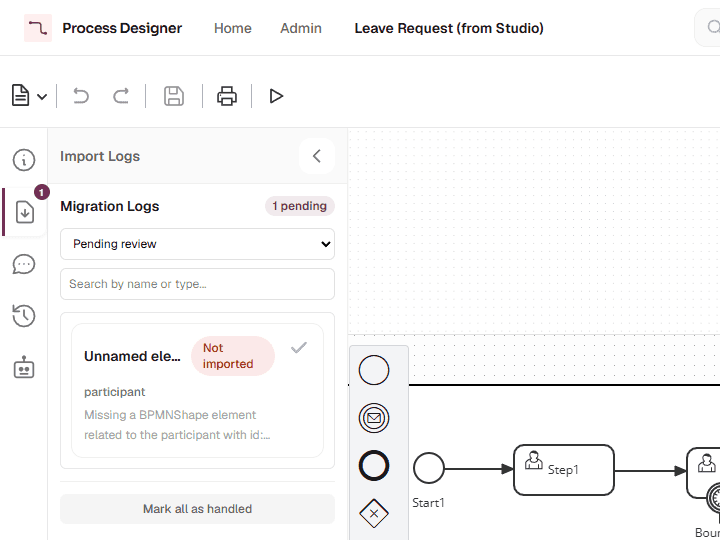
Each entry shows:
-
the element name (Unnamed element when it has none) and a status badge: Converted, Removed, or Not imported;
-
the element type, and for a conversion the new type (for example
Manual → Task); -
the reason.
To work through the entries:
-
Filter the list with the drop-down: Pending review (the default), Handled, or All entries. The search box filters by element name or type.
-
Click an entry to select and center the element on the canvas. A removed or not imported element is not on the canvas: Bonita Process Designer shows the reason instead.
-
Mark an entry as handled with the check mark button at the top right of the entry. Once the entry is handled, the button’s tooltip reads Mark as pending: click it to put the entry back in the pending list.
-
Mark all as handled, below the list, marks every entry at once. It is shown while entries are pending.
Admins and Creators can change the status of entries. Readers see the same buttons, but the change is refused and an error message such as "Failed to update status" is shown.
The tab shows the entries of the most recent import into the diagram that reported a change. An import with nothing to report does not replace them.
Known issues
-
Exported files declare
exporterVersion="1.0.0". The version written in every exported.bpmnfile is a fixed value that was not updated for Bonita Process Designer 1.1. Do not use it to tell which release produced a file. Importing these files is not affected.
Related pages
-
Supported BPMN elements — which elements are kept, and how the others are converted on import.
-
Export a diagram to Bonita Studio — the procedure, step by step.
-
Edit a diagram — refine the diagram after an import.
-
Use marketplace connectors — how connector bindings are exported.