


Manage AI quota
Set and monitor a per-group AI generation quota in Bonita Process Designer, based on a rolling 30-day usage window.
AI diagram generation is a shared resource. To keep one team from consuming all of it, Bonita Process Designer lets an Admin set an AI generation quota per group. The quota is enforced over a rolling 30-day window: each generation counts for 30 days from the moment it runs, after which it ages out and frees capacity again. There is no scheduled "reset" — the window simply slides forward in time.
|
Managing quotas requires the Admin role. The quota itself applies to everyone who generates against a group’s diagrams, including Admins. See Roles and permissions. |
How the quota works
Every group has an AI generation limit:
-
No limit (default) — the group can generate freely. This is the default for every group.
-
A numeric limit (for example
100) — the group can run at most that many counted AI generations in any rolling 30-day window. -
0— AI generation is fully blocked for the group.
What counts against the quota
Not every AI action is charged the same way:
| Action | Counts? | Notes |
|---|---|---|
Generate a diagram from text |
Yes |
A slot is reserved when the request is submitted, and confirmed only if the generation succeeds. |
Modify an existing diagram with AI |
Yes |
Charged the same way as a generation: reserved when the request is submitted, confirmed only if the modification succeeds. |
Analyze a diagram |
No |
Read-only; never counts against the quota. |
Generate and Modify run as background jobs, and a job in progress already counts against the quota. A job that fails, times out, or returns no usable diagram is not charged — the reserved slot is released automatically, so you are never billed for an empty result. Resuming a job after reloading the page does not charge it a second time.
Which group is charged
When a user runs an AI generation, Bonita Process Designer charges the group that owns the diagram being worked on. Access is always checked first, so a user can never consume — or even see — the quota of a group they do not belong to.
A diagram that does not belong to any group (a legacy, ungrouped diagram) is not quota-charged.
What users see when a group is over quota
When a group has reached its limit, the next attempt to generate is rejected immediately, before any AI processing happens — so it is fast and costs nothing.
-
On the Generate flow, the user sees a warning: "Your group has reached its AI generation quota for the last 30 days. Ask an administrator to raise the limit."
-
On the Modify tab, the same message appears inline.
The user can either wait for earlier usage to age out of the 30-day window, or ask an Admin to raise the limit. If you lower a limit below a group’s current usage, the group stays blocked until enough past generations age out.
|
A second, independent limit applies on the AI service side (a per-installation rate limit). If that limit is hit, the request is rejected but is not counted against the group quota. A generation is blocked if either limit is exceeded. |
Set a group’s quota
Quotas are managed from the groups screen.
-
Open Admin → Groups. Each group card shows an AI usage line — for example
AI: 42 / 100 in the last 30 days, orAI: 7 / ∞ in the last 30 dayswhen the group is unlimited. The line is highlighted in red when the group is at or over its limit. -
Click the lightning button on the group card to open the quota dialog.
-
Enter a numeric limit, or:
-
leave the field empty for unlimited generation;
-
enter
0to block AI generation entirely for the group.
-
-
Save. The new limit takes effect immediately.
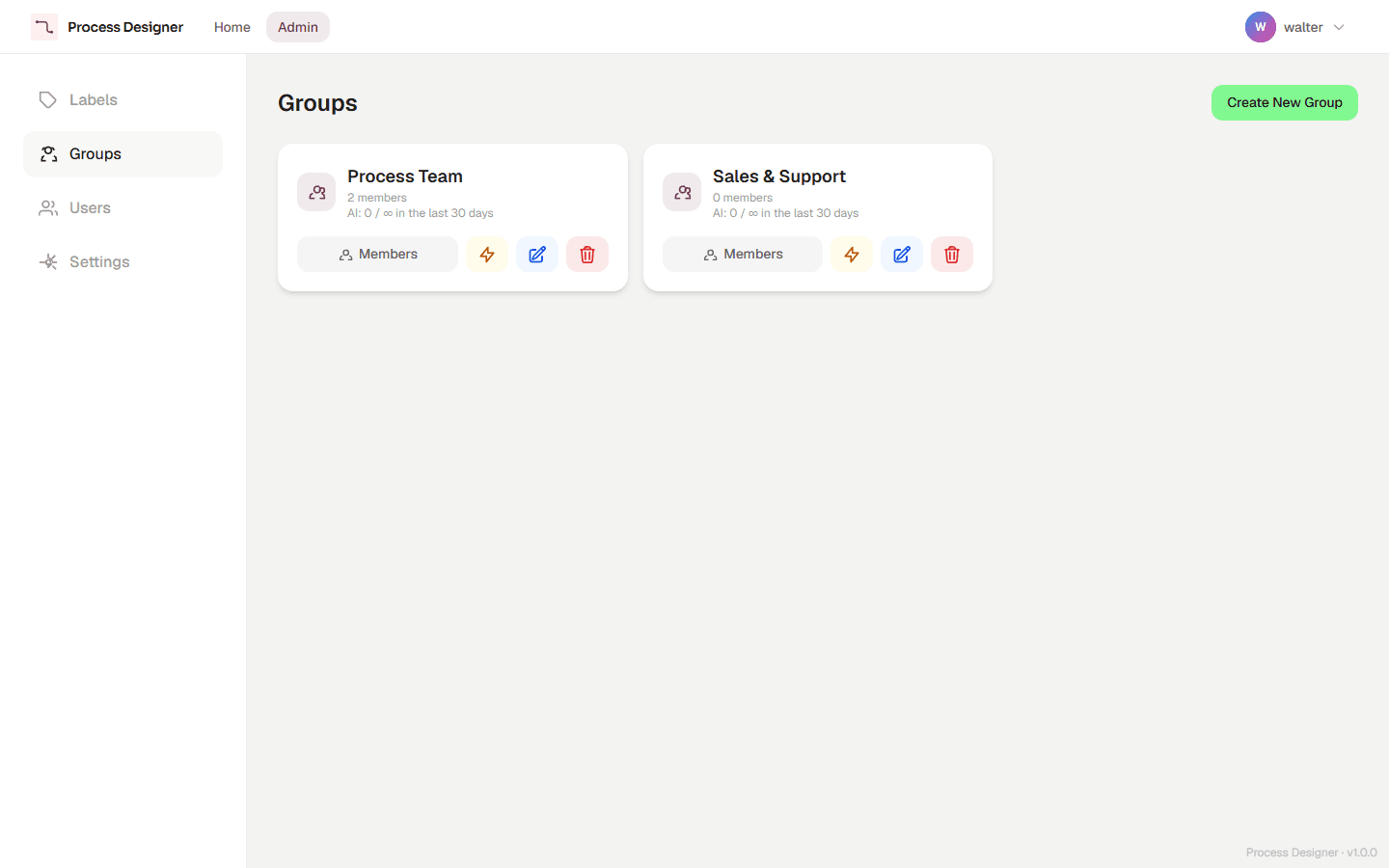
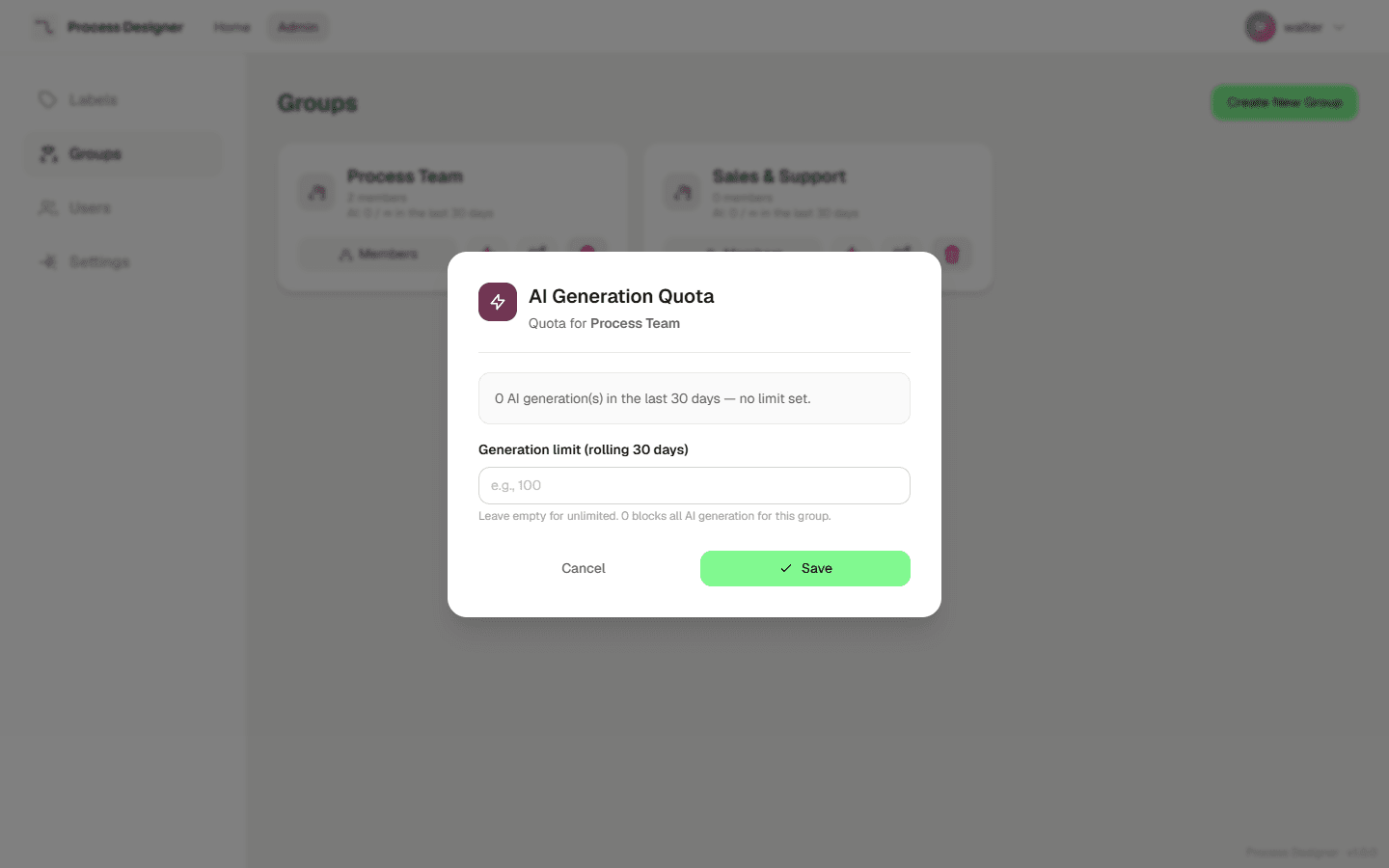
The quota dialog and labels are available in all supported interface languages.
Monitor usage
The used / limit figure on each group card reflects current consumption: confirmed generations in the last 30 days plus any generations currently in progress. This is exactly the same count the system uses to enforce the limit, so what you see is what is enforced.
Because usage is an event log rather than a counter, deleting a group also removes its usage history. Deleting a user or a diagram keeps the related usage events, so the group’s window count stays accurate.
Related pages
-
AI diagram generation — how users generate, modify, and analyze diagrams.
-
Manage groups — create groups and manage their members.
-
Application settings — other AI-related and global settings.