


Reuse code and components
Improve productivity and consistency in your applications.
While Bonita UI Builder does not natively support creating reusable components for process forms or UI elements (previously known as fragments in UI Designer), there are still many workarounds you can use to improve reusability, maintenance, and consistency between your pages and applications.
Custom widgets with an external source
You can host your custom widget’s logic or configuration externally, such as on a GitHub repository or a server. Inside the custom widget, you dynamically fetch the configuration or settings from that external source. Whenever updates are made to the external source, those changes automatically apply to all applications using the widget.
Below is an example of how you can load external HTML and CSS content from files hosted in a GitHub repository. On your Bonita UI Builder application, drag and drop a custom widget, click Edit source and paste the following HTML code:
<!DOCTYPE html>
<html lang="en">
<head>
    <meta charset="UTF-8">
    <meta name="viewport" content="width=device-width, initial-scale=1.0">
    <title>Load external content</title>
    <script>
        async function loadHTML() {
            try {
                const response = await fetch("https://raw.githubusercontent.com/yourrepo/main/htmlpage.html");
                const htmlText = await response.text();
                document.body.innerHTML = htmlText;
            } catch (error) {
                console.error("Failed to load HTML", error);
            }
        }
        async function loadCSS() {
            try {
                const response = await fetch("https://raw.githubusercontent.com/yourrepo/main/customcss.css");
                const cssText = await response.text();
                const style = document.createElement('style');
                style.textContent = cssText;
                document.head.appendChild(style);
            } catch (error) {
                console.error("Failed to load CSS", error);
            }
        }
        window.onload = function() {
            loadHTML();
            loadCSS();
        };
    </script>
</head>
</html>
Import external JavaScript libraries in custom widgets
Custom widgets let you import third-party JavaScript libraries directly in the source code via ESM (ECMAScript Modules) imports, with no build step. This is convenient, but it has a hidden cost: every dependency and sub-dependency of a library becomes a separate HTTP request, resolved by the browser one after another as it discovers them.
On a widget that combines several UI libraries (for example antd and Blueprint.js), this can multiply the number of requests and the total payload size, which directly impacts loading time, especially in the widget editor where the widget is rebuilt on every change.
Why so many requests?
When you write:
import { Button } from 'https://cdn.jsdelivr.net/npm/antd@5.11.1/+esm'the browser doesn’t download antd as a single file. It downloads antd’s entry file, which itself imports its dependencies (rc-util, rc-picker, dayjs, @ant-design/icons, @ant-design/cssinjs, etc.), each as a separate import to its own CDN URL. The browser can only discover these dependencies after downloading and parsing the parent file, so requests cascade one level at a time. Combining several full UI libraries multiplies this effect, since each one has its own dependency tree, icon set, and styling engine.
Recommendation: prefer esm.sh over jsDelivr +esm
esm.sh is a CDN built specifically for the ESM ecosystem. Unlike jsDelivr’s +esm mode, it lets you bundle a library and all its dependencies into a single file using the ?bundle (or ?standalone) query parameter, and pin a shared dependency version with ?deps=.
On a test widget (React + antd + Blueprint.js, about 8 library imports), switching from jsDelivr +esm to esm.sh with ?bundle reduced network requests by 98% and total transferred size by over 40%.
import React from 'https://esm.sh/react@18.2.0'
import ReactDOM from 'https://esm.sh/react-dom@18.2.0'
import { Button, List } from 'https://esm.sh/antd@5.11.1?bundle&deps=react@18.2.0,react-dom@18.2.0'-
?bundle(or?standalone) bundles all of the library’s dependencies into a single file instead of letting the browser resolve the cascade file by file. -
?deps=react@X,react-dom@Xforces the library to reuse the exact same React version imported by the widget, avoiding two React instances coexisting on the page (a classic cause of silent rendering failures, "Invalid hook call", or a blank screen). -
Don’t mix CDNs for libraries that depend on React: if React comes from jsDelivr while another library resolves its own copy of React via esm.sh (or vice versa), you end up with two distinct React instances on the same page, which breaks rendering.
Limitations to be aware of
-
esm.sh is not officially documented as a trusted CDN in some low-code platforms' documentation, unlike jsDelivr and UNPKG.
-
Depending on your environment (self-hosted instance, corporate proxy, restrictive CSP), the
esm.shdomain may not be allow-listed. Test it (a simplefetch()toesm.sh) before rolling it out broadly. -
esm.sh runs on a less redundant infrastructure than jsDelivr’s multi-CDN setup (Cloudflare, Fastly, Bunny, GCore), so availability is a smaller but real risk to monitor for production-critical widgets.
-
The
?bundle/?standalonemode can occasionally break a package’s side effects or the semantics ofimport.meta.url. Test each library individually after switching to bundle mode rather than applying the change blindly across a project. -
Query parameters (
?bundle,?deps=) must be kept in sync manually whenever you upgrade React or a library version; forgetting to update?deps=reintroduces the double React instance problem.
Other ways to limit requests
-
Avoid combining several complete UI design systems (for example antd and Blueprint.js) for the same need. Each one embeds its own dependency stack, icons, and styling engine — stick to a single UI library and cover your needs (including icons) with it.
-
Import only the components you actually use (
import { Button } from '…') instead of the whole library, when the library’s exports allow it. -
For a complex widget reused across several pages or applications, consider pre-bundling your own code with a build tool (esbuild, Vite), including only the components you need, and hosting the resulting single versioned file on a CDN. This removes dependency resolution from the browser entirely at load time.
JS libraries
In Bonita UI Builder, you can install custom JavaScript libraries to help you build complex applications and business logic. Custom libraries enable complex use cases like PDF generation or CSV parsing. Go to your Bonita UI Builder application and click the library icon in the bottom left corner. Then, click the + icon next to Installed libraries.
Additionally, You can also write and manage JavaScript code snippets directly within Bonita UI Builder’s JS objects by embedding your JavaScript code inside the platform.
Iframe widgets
Even though it is not our recommended approach, you still can use iframe widgets to call external pages. If you want to load a specific section of a page, there are several different options depending on your situation:
-
If you control the target page, create a separate HTML file containing only the desired section, such as the header, and point the iframe to that file.
-
If you don’t control the target page, use a server-side proxy to fetch the page content, extract the relevant section (like the header), and then serve it to the iframe.
-
For same-origin content, you can use client-side JavaScript to hide unwanted parts of the page or use the <object> element to load only the specific section you need.
Export and import features
While you can export and import applications as a whole, you can also choose to export and import specific parts of applications,
such as JS objects, databases, queries, custom libraries, widgets.
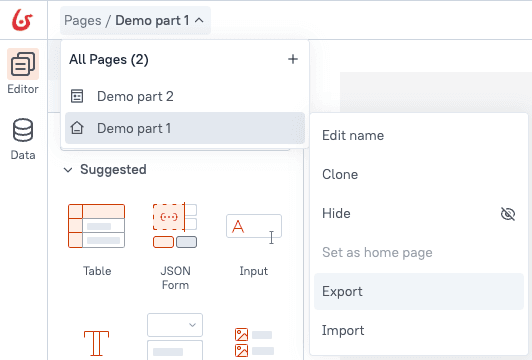
To do so, go to your Bonita UI Builder app, click the page name in the top left corner,
then click the … icon next to your page name and select Export or Import:
Also, please note that Bonita UI Builder’s drag and drop interface allows you to select multiple widgets at once (when holding down the left mouse button) and duplicate them between pages.