


Deploying Bonita UI Builder (UIB) Applications
| This job is only useful for versions of Bonita >= 2024.3/10.2. |
Deploy Job
The job "ACTION - Deploy UIB application files" allows you to deploy your Bonita UI Builder applications.

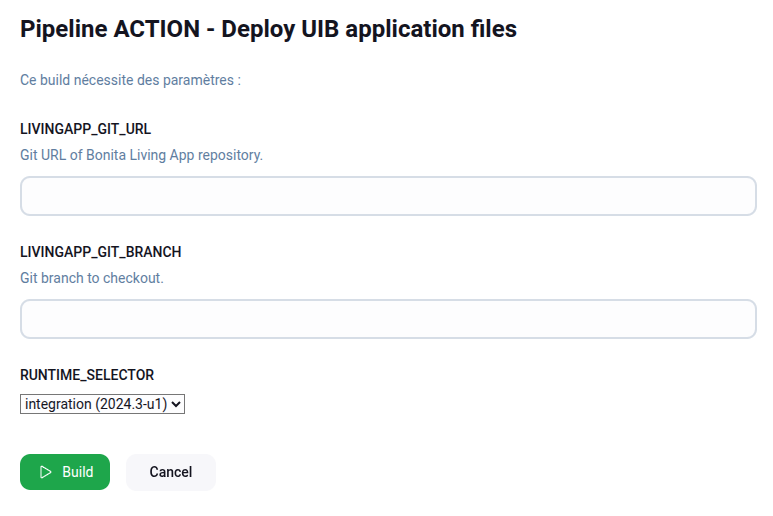
|
This job is automatically launched as part of the LivingApp deployment process. You do not need to trigger this job manually unless you want to deploy UIB applications only without redeploying the LivingApps. |
Prerequisites
Ensure that the UIB application files (.json) are placed inside the uib/ directory in your Git repository.
Launching a deployment manually
If you need to manually deploy Bonita UI Builder applications without redeploying the LivingApps, follow these steps:
-
Click on the
 of the "ACTION - Deploy UIB application files" job.
 -
Your default build configuration will be pre-loaded. If needed, you can modify it (repository URL, branch, etc.).
-
Select the target AppRuntime.
-
Click on the build button (lower left).
-
Monitor the job execution.
Deploying a single UIB application
By default, the job deploys all UIB applications found in the uib/ directory. If you only need to deploy or redeploy a single application, you can use the single-app deploy mode:
-
Enable the "Deploy a single UIB application" checkbox (
SINGLE_APP_DEPLOY). -
In the "UIB application name" field (
UIB_APPLICATION_NAME), enter the file name of the application inside theuib/directory (e.g.myapp.json). -
Proceed with the remaining steps as described in Launching a deployment manually.
|
When single-app mode is enabled, the job will:
All other UIB applications are left untouched. To deploy multiple applications selectively, run the job once per application. |
|
If "Deploy a single UIB application" is enabled but the "UIB application name" field is left empty, or if the specified file is not found in the |